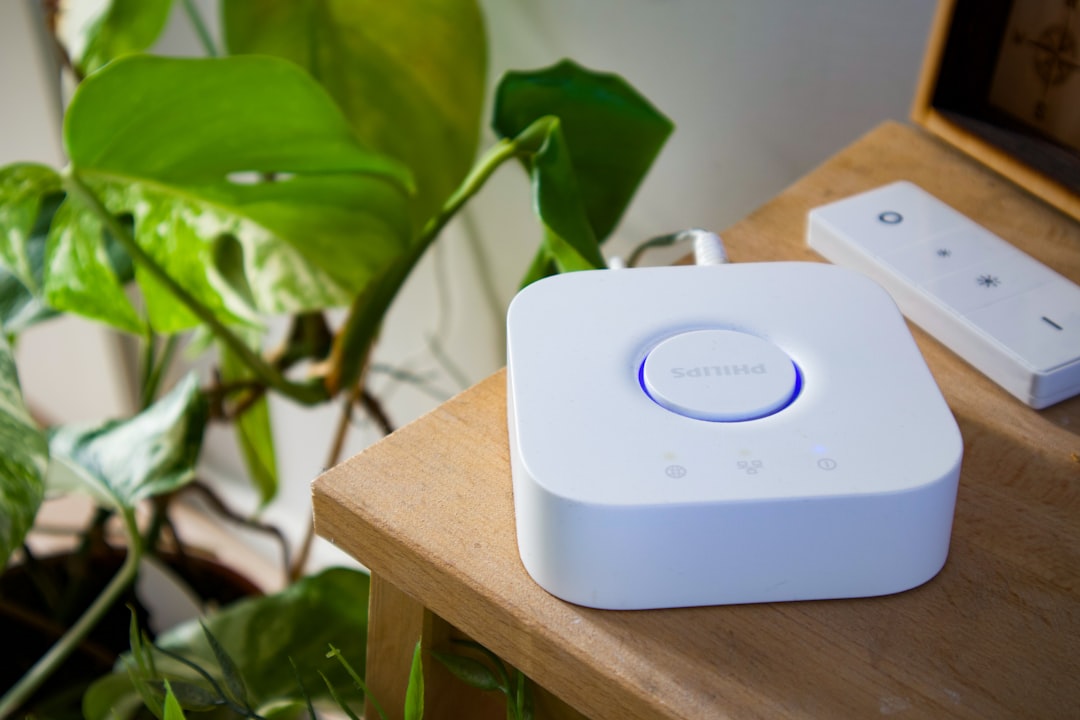
If your Philips Hue Bridge has lost sync with your network — dropping devices, refusing to discover bulbs, or stuck in a perpetual amber light loop — a targeted network reset is almost always the real fix, not a factory reset. Power-cycling alone won't cut it. The bridge stores corrupted DHCP lease data and stale ARP cache entries that survive reboots. You need to clear the network layer specifically.
The Philips Hue Bridge is one of those devices that looks dead simple from the outside — a white rounded square with three LEDs — but underneath it's running a reasonably complex embedded Linux stack, managing a Zigbee radio mesh, maintaining a local REST API, and trying to stay synchronized with Signify's cloud infrastructure simultaneously. When it breaks, and it does break, the failure modes are rarely obvious. Just as a DeLonghi Magnifica S Flashing Lights? How to Troubleshoot and Reset Your Machine guide might reveal, LEDs can often be misleading indicators of what is actually happening internally. The Hue app lies to you. Support often recommends a factory reset, but much like dealing with a Windows 11 Boot Loop? Here Is How to Fix Persistent Startup Crashes, this nuclear option wipes your data and often fails to address the underlying issue.
Let's talk about what's actually happening when a Hue Bridge loses sync, why network resets specifically work when they work, and when they don't — because there are edge cases that will absolutely destroy your afternoon.
Understanding Why the Hue Bridge Loses Network Sync in the First Place
The Bridge v2 (the square one, released 2015, still the current hardware) runs on an NXP i.MX6 processor with a dedicated SiLabs EM357 Zigbee radio. The networking stack is Linux-based, using udhcpc as the DHCP client — not dhclient, not NetworkManager, not anything you'd find in a modern desktop distro. udhcpc is lean and fast, which is exactly why it's used in embedded systems, and also exactly why its failure modes are weird and hard to diagnose without serial console access.
When your router reboots or changes, the Hue Bridge can lose its lease, a frustrating connectivity issue similar to Why Your Google Home Max Keeps Disconnecting From Wi-Fi (And How to Fix It). udhcpc on the bridge will retry, but if the timing is wrong — if the bridge tries to renew during the few seconds when the router's DHCP daemon is still initializing — it can end up in a half-assigned state. It thinks it has an IP. The router's lease table disagrees. ARP entries are stale on both sides.
This is the core failure mode. The bridge thinks it's online. The Hue app, connecting through the cloud relay or through local discovery, can't reach it. The middle LED on the bridge might still be solid blue (connected) because the bridge is evaluating its own network state based on its local IP assignment, not on actual reachability to the Signify meethue.com backend.
There's also a second, meaner failure mode that shows up in homes with DHCP reservations: someone changes the router, doesn't migrate the static DHCP leases, and the bridge gets a new IP. The Hue app on your phone has the old IP cached. Local API calls fail. The app falls back to cloud. If the cloud bridge registration is also stale — which happens when the bridge hasn't successfully checked in with meethue.com for a while — everything breaks simultaneously.
A third failure mode is specific to homes with managed switches or VLANs. The bridge uses mDNS (Bonjour) for local discovery. If your network segments IoT devices onto a separate VLAN without proper mDNS reflection (using something like avahi-daemon with reflector enabled, or Cisco's mDNS gateway feature), the bridge is simply invisible to your phone. This common networking issue is often blamed on the bridge, much like users incorrectly blame their devices when struggling with Why Your Ring Camera Is Struggling With Wi-Fi 7: Fixes and Network Tips. If you are experiencing wider smart home instability, check our guide on how to Stop Wi-Fi Dead Zones: The Ultimate Guide to Perfect Wi-Fi 7 Mesh Placement to ensure your signal isn't the root cause. You'll see it on every Hue subreddit thread titled "Bridge suddenly disappeared."
The Difference Between a Network Reset and a Factory Reset
This distinction matters enormously and Philips/Signify's own support documentation blurs it constantly, which is genuinely infuriating.
Factory Reset (the button on the bottom of the bridge held for 5+ seconds until all LEDs flash) wipes everything: your paired bulbs configuration, your scenes, your automations, your API whitelist, your room groupings. You are starting from zero. If you have 40 Hue bulbs and a complex lighting setup, this is hours of work to recover. And again — it often doesn't fix a network sync issue because the network corruption survives the factory reset. The bridge gets a fresh config but still runs the same broken DHCP negotiation cycle on the same network.
Network Reset is more surgical. It forces the DHCP client to release its current lease and request a fresh one, clears the ARP cache, and re-registers the bridge with the local mDNS stack. Your scenes, bulbs, and automations are untouched. This is the right first move.
The problem: Signify doesn't expose a clean "network reset only" button anywhere in the UI. You have to use a combination of physical steps and network-level intervention to achieve this.
Step-by-Step Network Reset Procedure
Here's the actual procedure that resolves the majority of bridge sync failures. I'll be specific because vague "try restarting it" advice is useless.
Step 1: Force a Clean DHCP Release at the Router Level
Before you touch the bridge, log into your router's admin interface. Navigate to the DHCP lease table. Find the Hue Bridge (it'll identify itself with a hostname like Philips-hue and a MAC address with a 00:17:88 prefix — that's Philips Lighting's registered OUI block). Delete this lease manually. If your router supports it, also clear the ARP cache entry for that MAC address.
On many consumer routers (ASUS, Netgear, TP-Link) this is buried under LAN > DHCP Clients List. On pfSense or OPNsense, it's under Status > DHCP Leases. On Ubiquiti UniFi gear, you can do it from the client detail page.
If you have a DHCP reservation for the bridge, temporarily remove it for this process. You'll re-add it after.
Step 2: Power-Cycle the Bridge in the Correct Sequence
Don't just unplug and replug. Sequence matters because you're also clearing the switch's MAC address table entry and the router's ARP cache.
- Disconnect the ethernet cable from the bridge (not from the switch/router end — from the bridge end).
- Disconnect the power adapter from the bridge.
- Wait 30 seconds. Not 10. 30. This ensures the router's ARP cache expires for that entry on most consumer firmware.
- Reconnect power to the bridge first. Wait for the internal bootloader to initialize — you'll see the LEDs cycle.
- Wait another 15 seconds after all LEDs stabilize.
- Then reconnect the ethernet cable.
The reason for this sequence: if you reconnect the cable before the bridge's network stack is fully initialized, udhcpc may send a DHCPDISCOVER during a window when the NIC driver isn't fully ready, resulting in the same corrupted lease state you started with.
Step 3: Force mDNS Re-announcement
After the bridge is back online (middle LED solid blue), open a terminal or command prompt on a device on the same network and run:
dns-sd -B _hue._tcp local.
On Windows, you can use Bonjour Browser or simply:
ping Philips-hue.local
If the bridge responds to mDNS discovery, you'll get a valid IP back. If it doesn't respond within about 20 seconds, the mDNS stack on the bridge hasn't re-announced yet, or your network is blocking multicast traffic on port 5353.
Step 4: Re-press the Link Button and Force App Re-discovery
Open the Hue app. Go to Settings > Hue Bridges. If your bridge shows as "unreachable," tap it and select "Search for Bridges." The app will do a combination of mDNS lookup and cloud-assisted discovery.
If local discovery fails and you know the bridge's new IP, you can manually point the app at it: tap the bridge in the settings, look for "I don't see my bridge" option, and enter the IP directly.
Critical detail: press the physical link button on the bridge before the app's discovery timeout (which is around 30 seconds). This re-authorizes the local API session between the app and the bridge. If you skip this step, the app may discover the bridge but immediately report authentication errors, which look exactly like a connectivity problem but are actually a whitelist issue.
When the Network Reset Doesn't Work: The Real Edge Cases
Here's where things get ugly. The network reset procedure works maybe 70-75% of the time based on the failure modes I've described. The remaining cases involve problems the network reset can't touch.
Corrupted Zigbee Network Table
The bridge maintains a Zigbee network table that maps each paired bulb's Zigbee address to its logical Hue ID. If this table gets corrupted — which happens more often than Signify will publicly admit, particularly after firmware updates — bulbs won't respond even after the bridge has a clean network connection. The bridge is online. The app can reach it. But lights don't respond and the Hue app shows them as "unreachable."
The only fix here is the factory reset, followed by a full Zigbee device re-pair. You can minimize the scene/automation loss by exporting your configuration first to a Hue account backup (Settings > My Hue System > Back up my system), though this backup doesn't capture third-party integrations via the local API or HomeKit automations.
Firmware Update Gone Wrong
Signify pushes firmware updates to the bridge OTA (over the air). The bridge downloads and applies them automatically, usually between 2-4 AM, without user notification. If the update fails midway — power outage, network interruption, router restart — the bridge can end up in an inconsistent firmware state where the middle LED blinks in unusual patterns that aren't documented in any official material.
The community has partially reverse-engineered the blink codes on Reddit (r/Hue, thread "LED blink codes deciphered" — pinned by moderator huedevon a few years back, though Signify never officially confirmed the patterns). A slow blink-blink-pause pattern on the middle LED during boot typically indicates a failed firmware verification. In this state, the bridge will sometimes accept a network reset and re-download the correct firmware chunk. Sometimes it doesn't. You'll know within about 10 minutes of attempting the network reset whether this is your problem.
IP Conflict and ARP Poisoning Edge Case
In homes with multiple smart home hubs — Hue Bridge, SmartThings hub, Lutron Caseta bridge, maybe an Aqara M2 — it's not unusual for IP address conflicts to develop, especially if the router's DHCP range is narrow or if multiple devices have static IPs set at the device level rather than via DHCP reservation. The Hue Bridge v2 doesn't support static IP configuration through the app or any official interface. It always uses DHCP. But if another device on the network grabs the same IP the bridge previously held, you get an ARP conflict that can be genuinely difficult to diagnose because both devices respond to ARP requests intermittently, creating a race condition.
Symptoms: bridge appears to connect, then drops, then connects again in 30-second cycles. App connects to it briefly, then loses it. This looks exactly like a WiFi interference issue even though the bridge is wired.
Fix: check your entire network's IP allocation table, find the conflicting device, and either move it to a different IP or set up a proper DHCP reservation for the bridge so it's guaranteed a unique address.
The Hue v1 vs v2 Bridge Behavior Differences Nobody Talks About
The original Hue Bridge (the round "hockey puck" style, discontinued) handles DHCP differently and doesn't run the same udhcpc version. Its failure modes are slightly different. If you're still running a v1 bridge — and some people are, it technically still works — the network reset procedure is largely the same, but the mDNS behavior is less reliable. The v1 bridge doesn't re-announce itself as aggressively after a reconnect, so you may need to wait up to 90 seconds before attempting app discovery.
Also, critically: Signify ended official support for the v1 bridge in April 2020. It no longer receives firmware updates. If you're troubleshooting a v1 bridge, some of the problems you encounter may be unfixable without hardware replacement. The v1 also can't use the Hue Entertainment feature (sync box integration), lacks some HomeKit functionality, and is limited to 50 lights versus the v2's 63-light limit.
Community Workarounds That Actually Work (And Some That Don't)
The r/Hue subreddit and the Hue Developer Forum have accumulated years of workaround knowledge, some of which is genuinely useful and some of which is cargo-cult troubleshooting.
What actually works:
- Assigning a DHCP reservation with a short lease time (e.g., 2 hours instead of 24): This forces the bridge to renew its DHCP lease more frequently, which reduces the probability of the stale-lease failure mode. Not elegant, but effective.
- Using the local REST API to check bridge health directly: If you know the bridge IP, hitting
http://[bridge-ip]/api/newdeveloper/lightswill tell you immediately whether the bridge's API is functional, even if the Hue app is failing to connect. Useful for isolating app-side vs. bridge-side issues. - Running
nmapto confirm the bridge is actually at the expected IP:nmap -p 80,443 --open [your-network-range]/24with the bridge's OUI filter. Basic, but people often skip this.
What doesn't work reliably:
- Resetting the Zigbee channel through the app as a fix for connectivity issues: The Zigbee channel only matters for wireless interference between the bridge and bulbs, not for the bridge's network connectivity. Changing it when you have a network sync problem is a placebo at best.
- Deleting and re-adding the bridge in HomeKit as a first step: This destroys your HomeKit automation setup without fixing anything. Do the network reset first, always. HomeKit will reconnect to the bridge automatically once it's reachable again.
- Power-cycling the bulbs to fix bridge issues: Bulbs are not the problem when the bridge can't reach the network. This is extremely common advice on support forums and almost universally wrong when the symptom is "bridge unreachable."
The Signify Support Experience and Why It Fails Users
Signify (the Philips lighting spinoff that owns the Hue product line) has a support infrastructure that is, to be direct, not built for the technical reality of their product. Their frontline support agents work from a decision tree that routes almost every problem toward either "factory reset" or "replace the bridge." Neither answer accounts for the distinction between network sync issues and actual hardware failure.
The community — particularly the Hue Developer Forum (developers.meethue.com/forum) — has historically been more useful than official support. Developers who integrate with the Hue API have documented edge cases, failure modes, and API behaviors that Signify never published. The API documentation itself has been incomplete and occasionally wrong; there are GitHub issues in various Hue integration libraries (huejay, node-hue-api, qhue) where maintainers have had to reverse-engineer behavior that Signify officially documented incorrectly.
This creates a support asymmetry: technically sophisticated users who find community resources eventually solve their problems. Average consumers who call or email support get told to factory reset, lose their setup, and often conclude the product is unreliable rather than understanding that a targeted fix existed.
Long-Term Prevention: Making Sync Issues Less Likely
The network reset is a fix. It's not a prevention strategy. Here's what actually reduces the frequency of these failures:
Set a DHCP reservation for your bridge's MAC address. This is the single most effective prevention step. It ensures the bridge always gets the same IP, eliminates IP conflicts, and prevents lease negotiation failures from router reboots. The MAC address is printed on the bottom of the bridge (or visible in your router's DHCP table).
Keep the bridge on a wired connection. The v2 bridge
Bu makale affiliate linkleri içermektedir.