Quick Answer: Dreame L20 Ultra Error 14 indicates a failure in the LiDAR or structured-light mapping sensor system — typically triggered by physical obstruction, dirty sensor windows, firmware miscommunication, or a hardware fault in the ToF module. Most cases resolve with a thorough sensor cleaning, obstacle clearance, and a hard reset. Persistent Error 14 usually points to a deeper hardware issue.
There's a specific kind of frustration that comes from a $900+ robot vacuum sitting in the middle of your living room displaying a cryptic error code; it is similar to the annoyance of dealing with a flickering TV, which you can often resolve by following a guide on why your Samsung QLED keeps flickering. Error 14 on the Dreame L20 Ultra is that kind of frustration. It looks clean. It sounds fine. But it has decided, with complete machine certainty, that it cannot perceive the world around it well enough to navigate it.
That's the operational reality of modern robot vacuums: they're not just cleaning appliances anymore. They're mobile sensor platforms that happen to also vacuum. And when the sensor stack breaks — or thinks it's broken — the whole machine stops.
Error 14 is specifically a mapping sensor fault. Not a brush motor error, not a water tank issue, not a dock communication problem. The L20 Ultra's onboard diagnostic system is telling you that something in its spatial perception chain has failed or is behaving outside acceptable parameters. What that actually means in practice — and why it's more complicated than Dreame's support documentation lets on — is what this piece is going to tear apart.
Understanding What "Mapping Sensor" Actually Means on the L20 Ultra
The Sensor Stack: LiDAR, Structured Light, and the ToF System
The Dreame L20 Ultra doesn't use a single sensor for navigation. It uses a layered system, and understanding which layer Error 14 is pointing at changes how you approach the fix.
At the top of the machine sits the LiDAR turret — the rotating module that emits laser pulses and measures time-of-flight (ToF) to build a 2D plane map of the surrounding room at roughly table-leg height. This is the primary navigation sensor. It spins continuously during operation, and it's mechanically complex in a way that most people underestimate: there's a motor, a bearing assembly, a laser emitter, and a receiver all packed into a housing about the size of a hockey puck.
But the L20 Ultra also has a 3D structured-light sensor mounted on the front — this is the "AI obstacle avoidance" system that Dreame markets heavily. It projects an infrared dot matrix pattern onto the floor and objects ahead, reads the distortion of that pattern with a camera sensor, and generates a rough 3D point cloud of what's in front of the machine. This is how it "sees" cables, socks, and pet waste (with varying reliability, which is its own conversation).
Error 14 can originate from either of these systems — or from the communication pathway between them and the main processing board. Dreame's error code documentation, at least the version that's publicly available, doesn't cleanly distinguish between a LiDAR fault and a structured-light sensor fault when Error 14 is thrown. This is a legitimate documentation failure that shows up repeatedly in support threads, much like the technical complexities users encounter when troubleshooting home tech, such as learning why your Wi-Fi 7 is dropping packets.
On r/Dreame, a thread titled "L20 Ultra Error 14 — what does it actually mean?" from late 2023 accumulated dozens of responses with people describing completely different root causes that all produced the same error code. That's a diagnostic system design problem, not a user error.
Why Error 14 Feels Random (But Isn't)
One of the confusing things about Error 14 is that it doesn't always appear consistently, a trait often shared by complex hardware failures that require advanced troubleshooting, similar to the steps taken when your Sony Bravia XR has a black screen. You'll get it three days in a row, then the machine runs fine for two weeks, then it's back. This intermittency makes people assume firmware, but the more likely explanation is environmental and mechanical interaction.
The LiDAR turret bearing is subject to accumulating debris — pet hair, fine dust, carpet fiber — that creates intermittent friction on the spinning assembly. At certain ambient temperatures or after certain run durations, that friction crosses a threshold where the motor's RPM drops below what the firmware considers acceptable, and Error 14 is thrown. Clean the area around the turret base, and suddenly the machine works again for two weeks — until debris accumulates again.
The structured-light sensor window is another intermittency source. It's a small, forward-facing panel near the front bumper. Cooking grease, splashed water, or just ordinary dust film on that window degrades the dot matrix projection enough to confuse the sensor's pattern recognition. The machine doesn't always fail immediately — it sometimes operates in a degraded mode until a certain confidence threshold drops too low, at which point it stops and throws the error.
This is the messy operational reality: Error 14 isn't a binary "sensor broken / sensor working" situation. It's a confidence score that the firmware calculates continuously, and that score is sensitive to a lot of analog variables that don't show up in clean diagnostic logs.
Step-by-Step Fix Protocol: What Actually Works
Step 1: Physical Inspection and Cleaning of the LiDAR Turret
This is where you start, every time, no exceptions. The LiDAR turret on the L20 Ultra has a transparent protective dome. That dome accumulates:
- Fine particulate dust that diffuses the laser signal
- Pet hair strands that sometimes bridge into the turret gap and create drag
- Dried liquid if the machine operated near a spill or if the mop system splashed back
Turn the machine off completely. Don't just put it in standby — power it fully off using the physical button.
Use a dry microfiber cloth — not paper towel, not a damp rag — to wipe the entire surface of the LiDAR dome. Use a clean, dry soft-bristled brush (the kind that sometimes comes bundled with the machine, or an artist's brush) to gently clear debris from the gap at the base of the turret where it meets the body of the vacuum. This gap is where debris accumulates and creates mechanical drag on the spinning assembly.
Do not use compressed air directly into the turret gap with force — you risk pushing debris into the bearing assembly rather than out of it. If you must use compressed air, use short, oblique bursts from an angle, not a sustained direct blast.
Manually spin the LiDAR turret with a finger — gently. It should rotate with almost zero resistance. If you feel any grinding, clicking, or rough patches in the rotation, that's a bearing issue and cleaning alone won't fix it. That's a hardware fault, and you need to escalate.
Step 2: Clean the Front Structured-Light Sensor Window
Look at the front face of the L20 Ultra. There's a small, slightly recessed transparent panel — usually sits just above the front bumper edge or integrated into the forward-facing sensor cluster depending on your firmware revision and manufacturing batch.
Wipe this with a dry microfiber cloth only. If there's grease or film that won't come off dry, use a cloth very lightly dampened with distilled water — not tap water, not any cleaning solution. Press gently and let it fully dry before powering the machine back on.
This step is consistently underestimated in forum advice. People focus entirely on the LiDAR dome and ignore the structured-light window. But in kitchens especially, that window gets a grease film that's nearly invisible to the naked eye but severely degrades sensor performance.
Step 3: Check the Operating Environment
Error 14 can be triggered by environmental factors that confuse the sensor systems themselves:
Direct sunlight hitting the LiDAR field of operation. Intense infrared from sunlight can saturate the LiDAR receiver and cause it to misread its own pulses. This is not a myth — it's a documented issue with ToF-based navigation systems generally. If your machine operates in a room with strong direct sunlight coming in low windows during certain times of day, that timing may correlate exactly with when Error 14 appears.
Highly reflective surfaces — large mirrors, floor-to-ceiling glass panels, certain high-gloss tiles — can cause LiDAR echo artifacts that the firmware interprets as sensor malfunction rather than navigation confusion. This is a known edge case across multiple LiDAR-based robot vacuum platforms.
Very dark or light-absorbing surfaces — matte black furniture legs, dark carpet edges — that absorb laser light and return weak or no signal, causing the firmware to question sensor health.
Low-ceiling or very cluttered spaces where the structured-light sensor's 3D point cloud becomes too complex to process reliably.
Test the machine in an open, moderately lit room — ideally your largest, least cluttered room with neutral flooring and no direct sunlight. If it runs cleanly there, you have an environmental interaction problem, not a sensor hardware problem.
Step 4: Hard Reset Procedure
After cleaning, don't just turn the machine back on. Perform a proper hard reset:
- Place the machine on its dock.
- Press and hold the physical power button on the machine for 10 seconds until it chimes or the indicator light changes.
- Wait for the machine to fully boot — this takes approximately 90 seconds on current firmware.
- Allow it to perform a docking self-check before attempting any cleaning run.
A hard reset clears transient firmware states that can persist after a sensor event and continue throwing Error 14 even after the underlying physical issue is resolved. This is surprisingly common and causes people to think their fix didn't work when it actually did — the firmware just hasn't cleared its error state.
Step 5: Firmware Check and Rollback Consideration
Open the Dreame app. Check the current firmware version. If your machine recently auto-updated — and the L20 Ultra does auto-update without asking you in some regional app configurations — cross-reference the update date with when Error 14 started appearing.
This is where things get politically uncomfortable: Dreame has pushed firmware updates that introduced or exacerbated Error 14 behavior in certain unit batches. This isn't speculation — it's documented in the Dreame Community Forum threads and echoed in Amazon review updates where users specifically mention "started getting Error 14 after the last update."
The firmware rollback situation on Dreame devices is, to put it plainly, bad. Unlike some competitors, Dreame doesn't give users a clean, in-app option to roll back to a previous firmware version. You can contact Dreame support and specifically request a rollback firmware package, but the process involves manual flashing steps that most consumers aren't going to navigate comfortably, and support response times are inconsistent depending on your region.
If you're in a region where the Dreame app gives you a firmware version history (some regional versions do, some don't — this is a fragmentation issue that the company hasn't resolved cleanly), and if you can identify a version that predates the Error 14 onset, that rollback is worth pursuing through official support channels.
Step 6: Factory Reset as a Last Software Step
Before assuming hardware failure, perform a factory reset. This wipes stored maps, cleaning schedules, and all user configuration. It also clears deep firmware state that a hard reset doesn't touch.
To factory reset the L20 Ultra:
- In the Dreame app: Device Settings → System → Factory Reset
- Alternatively, on the device itself: hold the power button and the home/dock button simultaneously for a longer hold — the exact combination varies slightly by firmware version, and Dreame's own documentation doesn't always reflect current production builds, which is a documentation hygiene problem the company has carried for a while.
After factory reset, allow the machine to build a fresh map from scratch before evaluating Error 14 recurrence. Using a corrupted or incomplete map with sensor errors embedded in it can perpetuate problems even after hardware is cleaned.
Real Field Reports: When Error 14 Is Actually Hardware
The Bearing Failure Pattern
Across repair teardowns and user reports — particularly in the Dreame subreddit and on the iFixit-adjacent community spaces where people actually open these machines — there's a recognizable pattern for genuine LiDAR hardware failure on the L20 Ultra and related Dreame platforms.
The LiDAR turret bearing begins to show wear at the inner race, usually after 12-18 months of daily use in homes with significant pet hair or fine debris. The failure mode is gradual: first intermittent Error 14, then more frequent stops mid-clean, then the machine stops navigating coherently even without throwing an error (because the firmware has degraded tolerance for the sensor's output), and finally consistent Error 14 on every run.
At this point, you need a LiDAR module replacement. Dreame sells replacement LiDAR assemblies through their official parts channel — availability varies by region and can take 2-4 weeks for shipping. Third-party parts exist on AliExpress but compatibility is inconsistent and the quality control is a gamble.
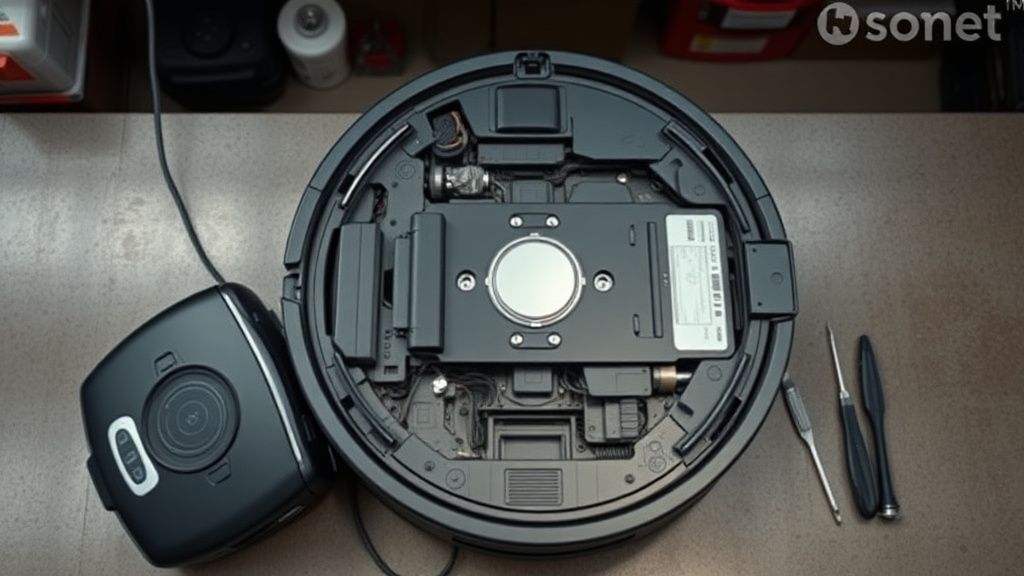
The replacement isn't trivial. It requires opening the top housing of the machine, disconnecting a ribbon cable that's more fragile than it looks, unseating the turret assembly, and reversing the process with the new unit. If you've worked on electronics before — tablet teardowns, laptop disassembly level — it's manageable. If you haven't, the ribbon cable is the failure point and you risk creating a new problem.
The Structured-Light Module Failure
Less common than LiDAR bearing failure, but it exists: the structured-light module itself can fail electronically. The infrared projector that creates the dot matrix pattern can degrade or die, usually from thermal cycling or a manufacturing defect in a specific production batch.
This failure is harder to diagnose without test equipment because visually the sensor window looks fine — there's nothing obviously wrong. A degraded or dead IR projector won't produce a visible symptom you can see with the naked eye (unless you have a phone camera that's sensitive to near-IR, in which you can check if the sensor is projecting any pattern in a dark room).
If you suspect this after exhausting all cleaning and reset steps, Dreame support is the appropriate escalation path. If the machine is within warranty, this should be a covered repair or replacement — though the warranty claim process has drawn criticism for being slow and requiring extensive documentation that typical consumers don't keep.
Counter-Criticism: Is Error 14 Really a Sensor Problem?
The "Firmware Over-Sensitivity" Argument
There's a legitimate counterargument to the "this is a sensor hardware problem" framing: Dreame's firmware is too aggressive in triggering Error 14. The confidence threshold that the firmware uses to evaluate sensor health may be calibrated in a way that throws errors for sensor states that other platforms would handle gracefully through software compensation.
This comes up in developer-adjacent discussions and in comparisons with Roborock's approach on similar hardware generations. Roborock's firmware tends to degrade navigation performance before stopping entirely — it navigates worse but keeps running. Dreame's firmware stops and reports an error at an earlier threshold. Whether this is "safer" behavior or "more annoying" behavior depends on your perspective, and both framings are defensible.
The practical implication: some percentage of Error 14 occurrences on the L20 Ultra are not sensor failures — they're false positives generated by firmware that's calibrated conservatively. Cleaning and resetting "fixes" them not because you fixed anything physically, but because you cleared a firmware state and allowed the sensor to re-establish its confidence baseline.
This doesn't mean the sensor wasn't marginal — a marginally dirty sensor that passes after cleaning was genuinely below threshold. But it raises the question of whether the threshold is set correctly for real-world operating environments.
The Warranty Gray Zone
Here's where economic tension enters the picture. If Error 14 is triggering because the firmware is over-sensitive to environmental conditions — direct sunlight, highly reflective floors — then the user is dealing with a design problem, not a use-error. But when they contact Dreame support, the support script is going to walk them through cleaning steps and eventually suggest that "unusual operating conditions" may be affecting performance.
That framing conveniently places the burden on the user. And if the machine is outside its warranty window, there's no escalation path that leads to a free repair for a problem that is, in part, a firmware design choice.
This is not unique to