Quick Answer: The Roomba Combo j9+ gets stuck on its dock or throws a charging error most commonly due to dirty charging contacts, a corrupted dock-recognition firmware state, or a failed AutoEmpty/AutoFill sequence that traps the robot mid-cycle. Clean the brass contacts with isopropyl alcohol, hard-reset the base station, and force a manual dock re-alignment before assuming hardware failure.
There's a specific kind of frustration that comes with a $1,000+ robot vacuum sitting six inches from its dock, blinking red, doing absolutely nothing useful. You bought the Combo j9+ because it was supposed to handle everything autonomously — sweep, mop, empty itself, refill its water tank, and go back to charging without you touching it. And yet here you are, at 11pm, reading a repair guide because the thing decided today was the day to stage a sit-in protest on top of its own charging station.
I've torn down more Roomba base stations than I care to count. The j-series combo docks are, frankly, some of the most mechanically ambitious pieces of consumer robotics iRobot has shipped — and that ambition is exactly why they fail in ways older models never did. There are four separate fluid/power systems running through that dock simultaneously. Any one of them can cause the robot to abort its return-to-dock sequence and sit there looking confused.
Let's get into the actual reality of this, not the sanitized FAQ version.
Why the Roomba Combo j9+ Dock Is Architecturally More Fragile Than Its Predecessors
The j9+ dock is not just a charging cradle. It's a combined charging station, debris evacuator, clean-water reservoir, and dirty-water collector. iRobot calls it the "Auto-Empty & Auto-Fill" base — which sounds impressive until you realize you've now quadrupled the number of failure points compared to a simple charging puck.
Older Roomba models — 600-series, 800-series, even early e-series — had one job at the dock: push current through two brass contacts. If the robot sat on them correctly, it charged. That's it. Simple, reliable, rarely broken.
The j9+ dock, by contrast, needs to:
- Align the robot's charging contacts with the dock's power pins
- Align the debris evacuation port on the robot's underside with the dock's suction inlet
- Optionally align the water fill port if the mop pad needs replenishment
- Communicate dock status back to the robot via infrared and onboard firmware
- Signal the iRobot cloud backend that the cycle completed successfully
When any one of these handshakes fails, the robot can enter a state iRobot's internal diagnostics call a "dock reconciliation loop" — where it's technically seated on the dock but the firmware hasn't confirmed a successful dock completion, so it won't begin charging. It just sits there. Error lights optional.
This is not a hypothetical edge case. This is, based on community threads in the iRobot subreddit (r/roomba) and the iRobot Community Forums, one of the most-reported failure modes for j9+ units purchased in the first 18 months of the product's availability.
The Charging Contact Problem: What Nobody Tells You in the Manual
The manual tells you to "clean charging contacts with a dry cloth." That advice is, charitably, incomplete.
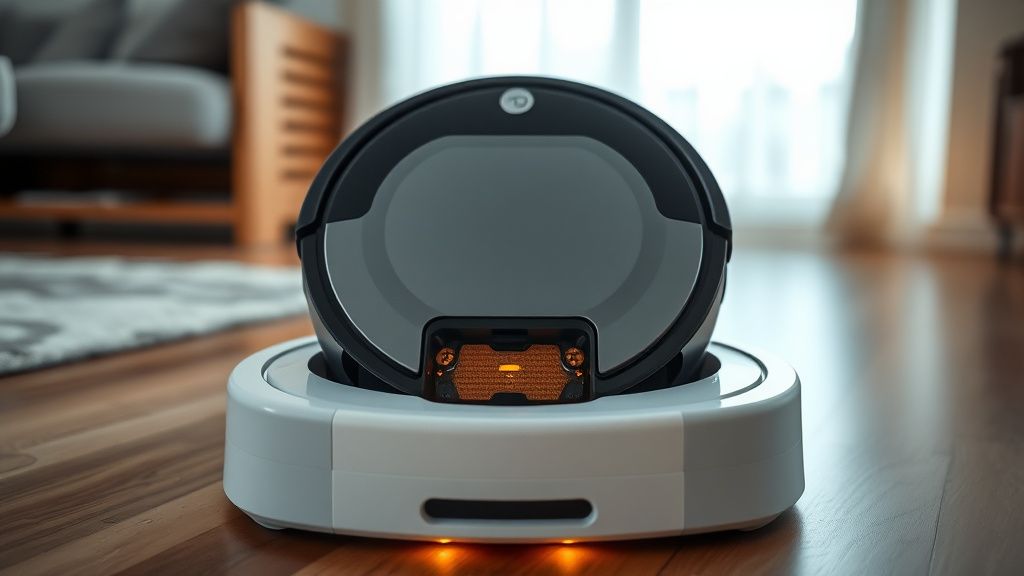
The brass contacts on the j9+ — both on the robot's underbelly and on the dock's corresponding pins — oxidize. Brass does this. It's not a defect, it's chemistry. In humid environments, in kitchens near cooking steam, or in homes with pets whose dander carries moisture, the oxidation rate accelerates. What you end up with is a thin film of copper oxide and grime that has high enough electrical resistance to prevent the charger from detecting a valid connection.
The robot sits on the dock. The dock sends a "are you there?" voltage pulse. The robot's charging circuit doesn't see a clean enough signal. The firmware interprets this as "no dock present" or "dock error." The robot may attempt to back off and re-dock, fail again, and then either throw an error or — in a particularly annoying firmware behavior — simply sit idle at the dock without charging and without reporting an error to the app.
Field fix, actually works:
- Get 91% or higher isopropyl alcohol. Not 70%. The higher concentration leaves less residue.
- Use a pencil eraser — the pink rubber kind — on the brass contacts first. Light circular motion. This mechanically removes the oxide layer.
- Follow with an IPA-dampened cotton swab to clean the residue.
- Do this on both the robot's contacts and the dock's pins. People always forget the dock side.
- Let everything dry completely before re-docking. Thirty seconds minimum.
This alone resolves a significant portion of j9+ charging failures. Not all of them. But enough that it should always be step one.
Community note from r/roomba (paraphrased from a thread titled "j9+ won't charge after 8 months, tried everything"): "Cleaned the contacts with a pencil eraser like someone suggested three posts down and it started charging immediately. No idea why this isn't in the official troubleshooting guide. The brass was visibly dark."
The Firmware State Problem: When the Robot Thinks It Already Docked
This one is subtle and annoying. The j9+ runs a fairly complex onboard state machine that tracks its operational cycle. "Cleaning → returning to dock → docked → evacuating → charging" — each step has to complete and hand off to the next.
If the robot gets interrupted mid-cycle — power flicker, someone manually carrying it off the dock, a Wi-Fi dropout during an active cloud sync at a critical moment — the state machine can end up in an inconsistent state. The robot "thinks" it completed docking but hasn't actually confirmed charging has begun. Or it thinks it's mid-evacuation when no evacuation is happening.
In these states, the robot will physically sit on the dock but won't initiate charging. Sometimes the app shows it as "docked." Sometimes it shows an ambiguous "error" with no meaningful code. Sometimes — and this is the one that really burns people — it shows "charging" in the app but the battery percentage doesn't move for hours.
The fix here is a hard reset sequence, not a soft reboot:
1. Remove the robot from the dock.
2. Flip it upside down.
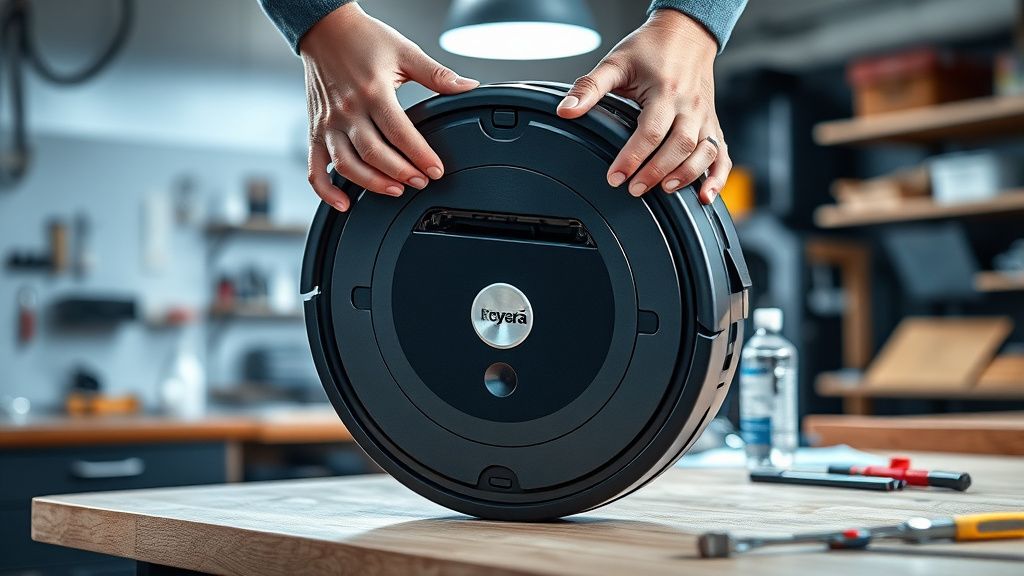
3. Hold the CLEAN button for 20-25 seconds until you hear a reboot tone.
4. Set it aside and let it complete its reboot cycle (the white ring will pulse).
5. Unplug the dock from power. Wait a full 60 seconds. Not 10 seconds. 60.
6. Plug the dock back in.
7. Wait for the dock to complete its own initialization (about 30 seconds).
8. Manually place the robot on the dock, aligning contacts carefully.
The reason the dock needs its own power cycle is that it has onboard firmware — it's not just a passive charging cradle. The dock's microcontroller maintains its own state. If the robot's state machine was corrupted during a failed handshake, the dock may be waiting for a signal that the robot is no longer sending. Cutting power forces both devices to start the handshake from scratch.
AutoEmpty System Failures: When the Dock Chokes and Blocks Charging
Here's a failure mode that doesn't get enough attention in mainstream troubleshooting guides: the dock's AutoEmpty system can clog in a way that prevents the robot from completing its dock sequence, which in turn blocks charging from initiating.
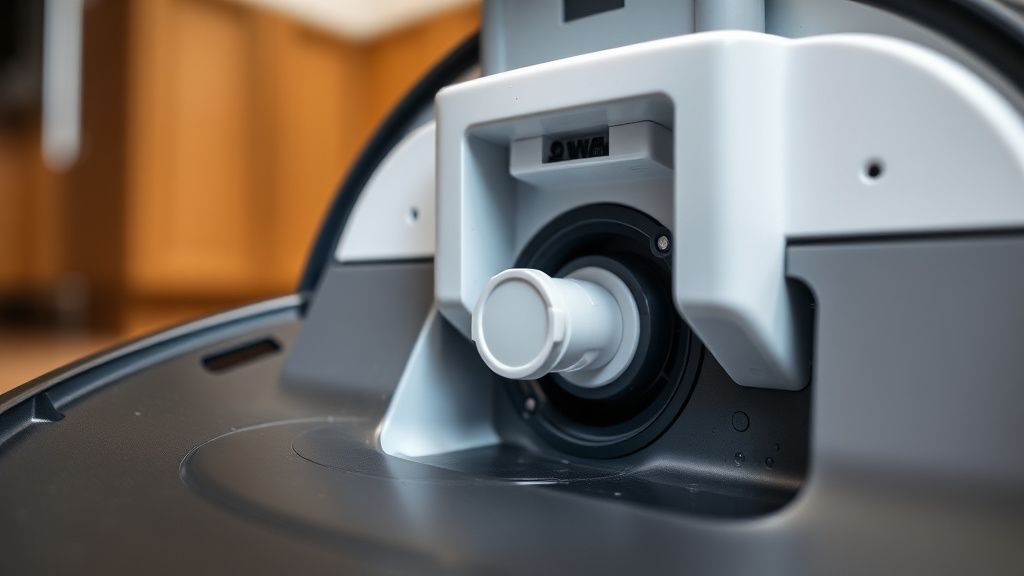
The evacuation system works by spinning a high-speed impeller inside the dock to create suction, pulling debris from the robot's onboard bin through a port in the dock. When the dock's internal bag fills up, or when a larger debris object partially obstructs the inlet, the evacuation cycle can either stall mid-cycle or time out.
When evacuation times out, iRobot's firmware is designed to hold the robot in a "docked but pending" state — theoretically to retry evacuation. In practice, what often happens is the robot stays in this limbo state indefinitely. Charging does not begin because the firmware's sequential logic says "complete evacuation, then charge," and evacuation never completed.
Symptoms of this specific failure:
- Robot sits on dock, no charging progress after 30+ minutes
- You can hear the dock trying to run the evacuation motor and failing (a brief whine, then silence)
- App may show "emptying" as a persistent status that never resolves
- Dock bag may feel full or nearly full
Field fix:
- Empty or replace the dock bag immediately. Even if it looks "not that full" — the bag's sensor can trigger prematurely, and partially filled bags can restrict airflow enough to cause evacuation failures.
- Check the evacuation inlet on the dock's interior — use a flashlight. Look for a large piece of debris (gravel, lego, hair clip, the usual suspects) sitting in the inlet path.
- Remove any blockage with needle-nose pliers or a thin-profile vacuum attachment.
- Run a manual "empty bin" command from the iRobot app before returning the robot to the dock.
The manual "empty bin" command bypasses the automatic post-dock evacuation sequence and can break the firmware out of its stuck state, allowing charging to proceed.
Water System Complications on Combo Models: The Mop Layer
The j9+ is a combo unit — it has an integrated mop pad with a retractable module. The dock on Combo variants includes a water resupply system that refills the robot's onboard water reservoir during dock cycles.
This adds another layer of failure modes specific to Combo units that non-combo j9 users don't deal with.
When the water fill port on the robot's side doesn't align properly with the dock's fill port — due to the robot sitting slightly off-center on the dock — the fill sequence can time out or produce a fill error. Some firmware versions handle this gracefully (skip water fill, proceed to charging). Others don't.
There's a documented firmware behavior — reported extensively in the iRobot Community Forum thread "Combo j9+ keeps getting stuck at dock, fill error" — where a failed water fill attempt prevents the robot from advancing to the charging state. This was present in several firmware builds and iRobot released patches for some versions, but the fix rollout was incomplete and some units on older firmware still hit this.
Check your firmware version. In the iRobot app: Profile → Your Robots → select the j9+ → About. Compare your version against the latest available in the app's update prompt. If you're more than two versions behind, this is almost certainly contributing to your problem.
Also check dock alignment physically. The Combo dock has small rubber feet and alignment guides. If the dock has slid on a hardwood or tile floor — which happens more than you'd think, especially during the evacuation suction pulse — the robot's home beacon IR signal may be leading it to a position where it lands slightly misaligned with the fill port. A piece of non-slip mat under the dock is a legitimate and permanent fix.
Wi-Fi and Cloud Sync: The Invisible Layer That Breaks Things
iRobot's j-series is a cloud-dependent platform. This is not just about remote control and scheduling — the robot's onboard diagnostics and some firmware-state transitions actively depend on cloud communication.
There are documented cases — including a lengthy thread on the iRobot Community Forum from 2023 — where an AWS connectivity issue on iRobot's backend caused j-series robots across multiple markets to fail to complete dock-confirmation sync. The robots were physically charged and physically docked, but the app never transitioned from "returning home" to "charging" status, and some robots continued attempting to execute movement commands based on corrupted schedule states.
The operational implication for users experiencing "stuck on dock" issues: if the problem appeared suddenly, without any physical changes to the dock or robot, check iRobot's service status. There is a status page, though it's not prominently advertised. iRobot has had several backend incidents that caused widespread "my Roomba won't dock properly" reports that had nothing to do with the physical unit.
Also relevant: iRobot was acquired by Amazon in 2023 after a prolonged regulatory review. The backend infrastructure transition post-acquisition has been bumpy. There have been periods of elevated API error rates reported in community forums. This is not speculation — it's visible in the wave-pattern of support complaints and recovery that correlates with known AWS/iRobot service events.
Real Field Reports: What Technicians and Power Users Actually See
Beyond the clean troubleshooting logic, here's what the actual failure distribution looks like from someone who's seen a lot of these units:
Most common (roughly, based on the types of issues I repeatedly encounter):
- Dirty charging contacts — this is the plurality of "won't charge" issues
- Full or obstructed dock bag causing evacuation timeout
- Firmware state corruption after power interruption
- Dock physically displaced from correct position
Less common but disproportionately frustrating:
- Failed dock IR beacon (the dock stops broadcasting its position signal — robot can't find it even if it's 6 inches away)
- Worn or bent charging pins on the dock side (dock pins have spring tension; they fatigue over time, especially with heavy-use units)
- Water fill pump failure inside the Combo dock (requires dock teardown or replacement)
Rare but real:
- Motherboard-level charging circuit failure on the robot
- Dock power supply failure (the brick)
- IR receiver failure on the robot (can't see dock beacon even when dock is broadcasting correctly)
The charging pin fatigue issue is underreported. iRobot's dock pins are spring-loaded, and after 12-18 months of daily docking cycles, some units show measurable reduction in spring tension. The pin still makes contact, but the contact pressure is lower — which combines badly with any surface oxidation to produce an intermittent charging fault. You can test this by pressing the robot manually onto the dock with slightly more than normal force. If it starts charging when you press down but stops when you release, the spring tension in the dock pins is your problem. Replacement dock or iRobot support is the path forward here — this is not a field-serviceable component without a replacement dock assembly.
Counter-Criticism: Is the j9+ Dock Too Ambitious for Its Own Good?
There's a legitimate debate in the robotics enthusiast community about whether iRobot over-engineered the j9+ dock to the point of self-defeating reliability.
The counter-argument from iRobot's design perspective is understandable: users wanted truly hands-off operation. The all-in-one base station delivers that, when it works. The evacuation system genuinely works well for most users most of the time. The water resupply is a real quality-of-life improvement for combo users. These are not gimmicks.
But the engineering compromise here is real. Each additional automated system is a new failure surface. A simple two-contact charging dock has almost nothing to go wrong. A dock that also does AutoEmpty, AutoFill, cloud sync, and IR beacon — and that sequences all these operations in a firmware state machine — has many things that can go wrong, and some of them interact with each other in non-obvious ways.
Posts on Hacker News discussing the j-series have a recurring theme: "works great until you actually scale it — or until one of the four concurrent systems has a bad day." That's not wrong. The reliability envelope of the j9+ system is narrower than a simple Roomba because the complexity ceiling is higher.
The counter-argument from repair professionals is similar: the more complex the system, the more it requires periodic maintenance that users weren't told to expect. iRobot's marketing for the j9+ emphasized autonomy and zero-effort operation. The reality is a system that needs quarterly contact cleaning, regular dock bag replacement, occasional dock realignment, and firmware monitoring. That's not zero effort. It's just different effort.
Whether that trade-off is acceptable depends entirely on whether the user's failure experience falls within the normal recoverable range (dirty contacts, full bag) or outside it (spring tension failure, dock PCB failure). For most users, it's the former. For a subset, it's the latter, and those are the people writing frustrated reviews.
Systematic Troubleshooting Checklist: Actual Operational Order
Don't jump around. Do these in order. Each step