Quick Answer: The Dreame L10s Ultra docking error typically occurs when the robot fails to align with the auto-empty station, triggering fault codes during return-to-base cycles. Most fixes involve cleaning dock contacts, repositioning the station on hard flat flooring, resetting the docking map, or clearing the brush/wheel assemblies of debris that disrupts approach trajectory. Usually solvable in under 15 minutes.
Here's the uncomfortable truth about the Dreame L10s Ultra's docking problem: it's not really a docking problem. It's an accumulation problem — dust on contacts, carpet fibers jammed in the side brush shaft, a dock that's migrated two centimeters off its original position because someone bumped it during vacuuming week three. The robot is operating mostly correctly. The environment around it has quietly degraded past its tolerance threshold.
I've pulled apart enough of these machines — and their competitors — to know that the gap between "it works perfectly in the promotional video" and "it throws a docking error at 2am on a Tuesday" is almost always a maintenance story nobody told you, much like how users often require a specific Jura E8 Error 8: How to Fix Your Espresso Machine’s Brew Group Stall guide to troubleshoot high-end kitchen appliances.
Let's go through this properly.
What the Dreame L10s Ultra Auto-Empty Station Actually Does (And Where It Breaks)
Before you start swapping parts or factory resetting anything, understand what's happening mechanically and electronically when the L10s Ultra attempts to dock.
The robot approaches the station using a combination of LiDAR-based spatial mapping, infrared signal triangulation from the dock's IR emitters, and visual landmark recognition via its front camera module. When all three inputs agree, the robot commits to a final approach and slides into the dock. The charging contacts engage, the dust bag suction motor kicks on (if auto-empty is triggered), and the system reports a successful dock.
The failure modes cluster around four distinct layers:
1. Sensor Layer Failures The dock's IR emitters get dusty, which can lead to communication failures much like the connectivity issues addressed in our guide on Why Your Ring Camera Is Struggling With Wi-Fi 7: Fixes and Network Tips. The robot's IR receivers — located on the front bumper — get dusty. Ambient light interference from windows or floor lamps can confuse the IR triangulation, causing erratic behavior similar to what you might experience with Why Your Philips Hue Bridge Keeps Disconnecting (And How to Fix It). The front camera gets smeared with cleaning solution residue from the mop module, an issue as frustrating as seeing a Fire TV Stick 4K Max Black Screen? Try These Quick Fixes. Any of these makes the final approach geometry wrong by just enough to miss the contacts.
2. Physical Contact Layer Failures The charging pins on both the robot and the dock oxidize, which can interrupt power flow just as hardware faults cause a Sony Bravia XR Black Screen: Is It a Software Glitch or Hardware Failure? incident. This is inevitable, similar to how network congestion often necessitates a Why Your Netgear Nighthawk Keeps Dropping Connection (And How to Fix It) procedure. The auto-empty suction port on the robot's dustbin can become partially blocked with compacted debris, causing the station's suction to fail mid-empty, which the firmware interprets as a docking error (not a suction error — an important distinction).
3. Navigation Layer Failures After map resets, firmware updates, furniture moves, or aggressive floor cleaning that shifts the dock, the robot's learned approach path may no longer reflect physical reality. It commits to an approach vector that was accurate three weeks ago and is now six centimeters off-axis.
4. Mechanical Layer Failures The side brush shaft bearing wears and accumulates hair wrap. This causes slight drag that affects the robot's turn radius during the final dock approach. Similarly, worn wheel suspension can cause the robot to sit slightly tilted, preventing full contact engagement on the dock's charging pads.
Reading the Error: What Dreame's Fault Codes Actually Tell You
The Dreame app surfaces these errors in a way that's frustratingly vague if you don't know the mapping. The app usually displays something like "Return to base failed" or "Charging error" — which tells you approximately nothing useful.
The more informative signals are in the robot's behavior before it throws the error:
- Robot approaches dock, makes contact, immediately reverses: 99% charging pin contact failure. Either dirty contacts or physical misalignment.
- Robot circles the dock area repeatedly, never commits to approach: IR emitter/receiver issue. The robot can't lock onto the dock signal cleanly enough to trust the approach.
- Robot approaches from wrong angle, bumps station side: Map drift. The stored approach vector no longer matches physical dock position.
- Robot docks successfully, then throws error 30-90 seconds later: Auto-empty suction fault. Either blocked dustbin port, full bag, or suction motor issue in the station itself.
- Robot stops mid-approach, reverses, reports obstacle: Obstacle detection false positive. Something is reflecting the robot's obstacle sensors near the dock area — often the dock's matte/glossy surface under certain lighting conditions.
That last one is genuinely annoying and shows up in Dreame community threads with surprising frequency. The dock's front face can create reflection artifacts that the robot's obstacle avoidance interprets as a physical blockage. Dreame has patched some of this in firmware, but it hasn't fully gone away.
The Actual Fix Process: No Guesswork, No Ceremony
Step 1: Clean the Charging Contacts — Both Sides
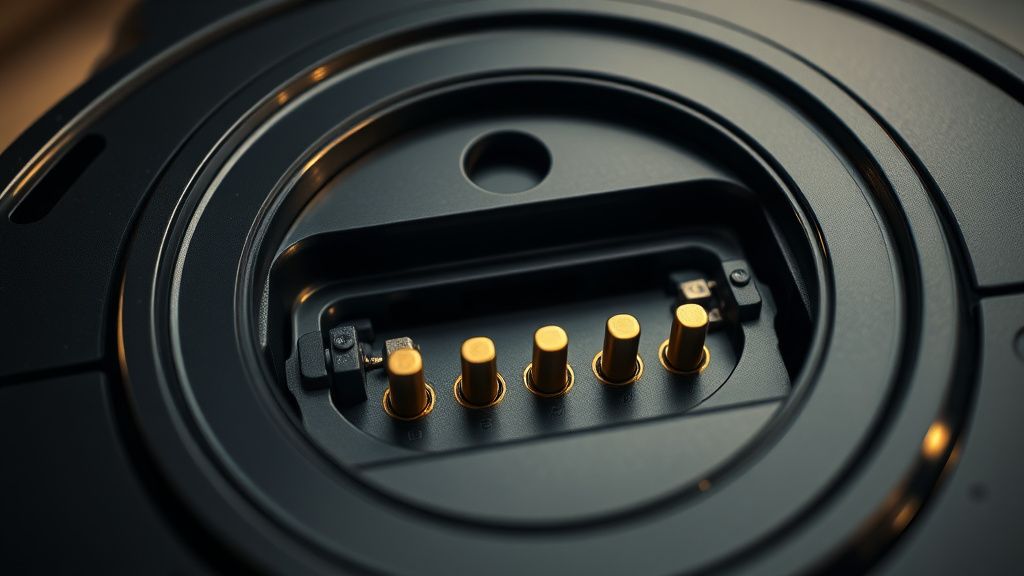
This is the fix 60% of the time. Get a dry microfiber cloth or a cotton swab barely dampened with isopropyl alcohol (90%+, not the 70% drugstore stuff — the water content matters here). Clean the three charging contact pins on the robot's underside and the corresponding pads on the dock.
If there's visible oxidation — a slightly greenish or dark tarnish on the gold-plated contacts — use the eraser end of a pencil very lightly. I know that sounds absurd. It works. The abrasive gently removes oxidation without scratching the plating significantly.
Do not use WD-40. Do not use any lubricant. You want clean, dry metal contact.
After cleaning, manually place the robot on the dock and verify the charging indicator activates. If it does, you've confirmed contact is good. If it doesn't, the contact pads themselves may have physical damage or the spring tension in the dock's contact pins has worn — which is a hardware warranty issue.
Step 2: Check and Clear the Auto-Empty Suction Port
Flip the robot over. On the underside, locate the dustbin compartment and find the circular suction port that aligns with the dock's suction nozzle. Remove the dustbin entirely and visually inspect this port.
You're looking for:
- Compacted dust and fiber plugs at the opening
- Hair wrapped around the port rim (this happens more than you'd think)
- Debris from construction materials — drywall dust and plaster compact into something close to concrete in these ports
- The dustbin's foam filter being wet (from mop module overspray) which causes the auto-empty suction to strain against back-pressure
Clear anything you find. Compressed air works well here but be aware you're potentially pushing debris further into the dustbin channel — vacuum it from outside first.
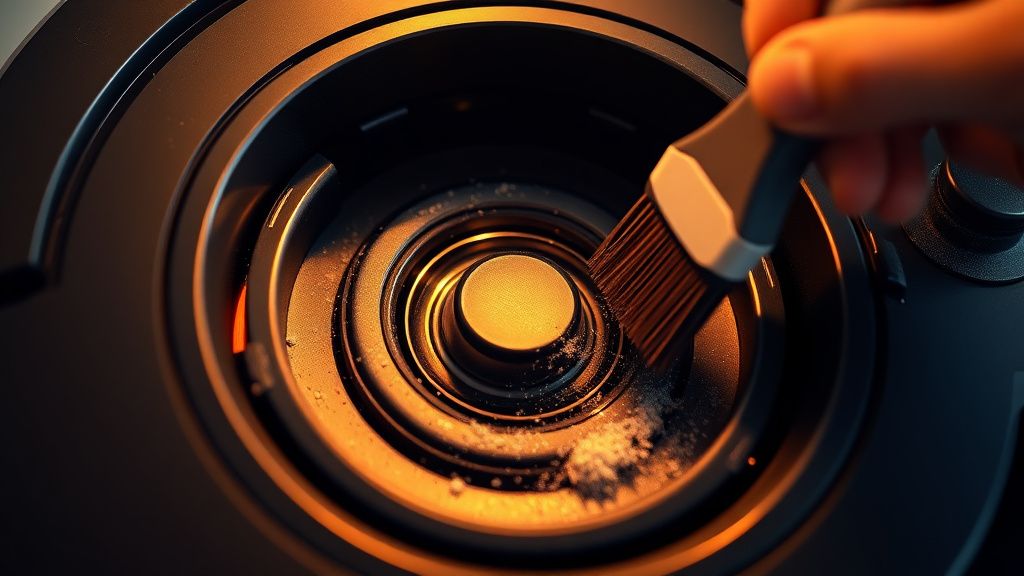
Also check the dock side: the suction inlet nozzle on the station can accumulate a felt-like layer of fine dust around the lip. Clean this with a dry brush.
Step 3: Physically Reset the Dock Position
This step gets ignored constantly and it's the cause of chronic recurring docking errors.
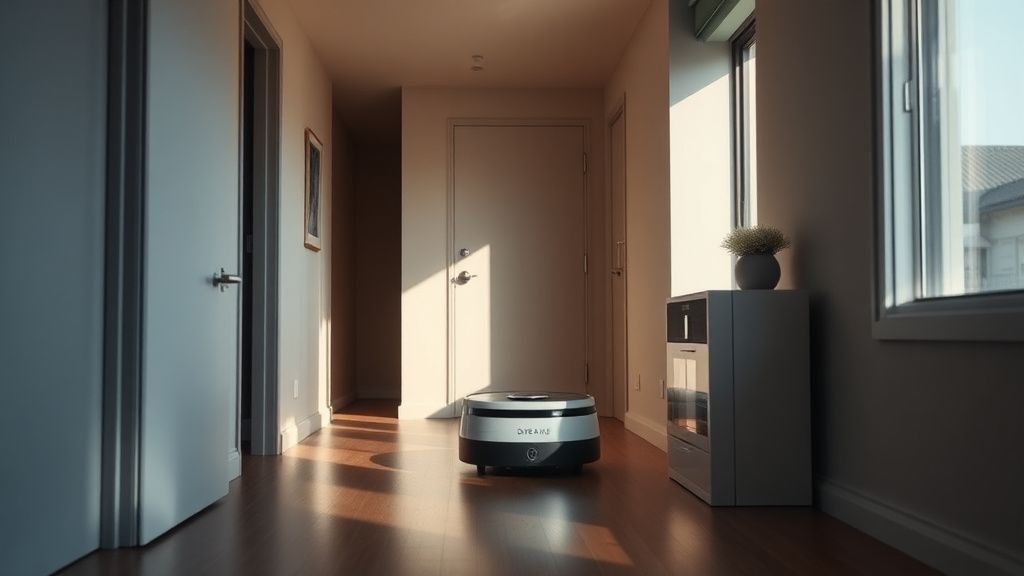
The L10s Ultra needs at least 0.5m of clear space on both sides of the dock and 1.5m of clear space in front of the dock. Those numbers are in the manual. Most people don't give it that space after the initial setup because furniture gets rearranged, rugs migrate, and nobody re-reads the manual six months in.
More importantly, the dock needs to be on hard, flat flooring. If the dock is sitting on a thick carpet or rug — even partially — the approach angle changes enough to cause contact misalignment. The dock rocks subtly. The charging contacts sit 3-4mm lower relative to the robot's chassis height on hard floor. That's enough to miss.
Reposition the dock on hard flooring, ideally against a flat wall. The dock's backing must sit flush against the wall — if it's angled even slightly, the robot's approach vector (which assumes a perpendicular dock-to-wall relationship) will be slightly off.
After repositioning physically, you need to tell the robot about it:
In the Dreame app: Settings → My Devices → [Robot Name] → Relocation/Dock Position Reset
Some firmware versions call this differently. You're looking for any option that lets the robot re-learn the dock's position without doing a full map wipe. Run the robot from the dock to map its approach path fresh.
Step 4: Clear Brush Assembly and Wheel Debris
Hair wrap around the side brush shaft creates drag. Drag causes the robot to pull slightly to one side during the final approach arc. The robot's drive motors compensate, but if the hair wrap is severe enough, the compensation isn't clean, and the robot overshoots or undershoots the dock contact position.
Remove the side brush by unscrewing its single retention screw. Clear all hair from the shaft. Check the main brush roller for hair wrap at both bearing ends — the end caps on the L10s Ultra's main brush are designed to be removable specifically for this. Pop them off and pull out the accumulated hair.
Check the left and right drive wheels. Press each wheel firmly upward into its suspension housing and release — it should spring back smoothly. If one side is stiff or doesn't return fully, there's debris in the wheel suspension channel. Clean it out with a thin tool.
Firmware: The Hidden Variable Nobody Talks About
The L10s Ultra has received multiple firmware updates since launch. Some of these updates have introduced docking problems. This is documented in Dreame's own community forums and in r/Dreame on Reddit, where threads like "docking worked fine for 6 months, broke after update, nothing physically changed" appear with depressing regularity.
Specifically, firmware versions around the 1.x.x series had known approach vector recalculation bugs that caused map-accurate docks to suddenly become approach failures. Dreame pushed patches, but the rollout was uneven — different regional firmware versions, different app versions, inconsistent OTA delivery timing.
If you've ruled out all physical causes and the docking error appeared immediately after an automatic firmware update, this is likely your problem. The fix options are:
- Wait for the next OTA patch (unsatisfying but sometimes the only option)
- Hard reset the robot and rebuild the map from scratch (this often resolves firmware-introduced navigation artifacts)
- Downgrade firmware (Dreame does not officially support this and it's genuinely difficult without rooting, but threads on GitHub and Valetudo forums document methods for more technically inclined users)
The broader issue here is that Dreame's OTA update process has essentially no rollback capability for end users. You get the update automatically, it breaks something, and you wait. This is an industry-wide problem — iRobot has done similar things with Roomba — but it's worth acknowledging because it erodes user trust faster than almost any hardware failure.
Real Field Reports: What Users Actually Experience
This is where the picture gets messier than any troubleshooting guide wants to admit.
On the Dreame Community Forums and r/RobotVacuums subreddit, the most common real-world pattern reported goes something like this: unit works flawlessly for 2-4 months, then begins throwing intermittent docking errors that become progressively more frequent. By month six, some users report it failing to dock reliably more than half the time.
The pattern suggests gradual accumulation failures — contacts oxidizing slowly, brush bearings accumulating hair, dock position drifting — rather than a single failure event. Users who perform monthly maintenance (cleaning contacts, clearing brush assemblies, checking dock position) consistently report far fewer docking issues than those who treat it as a fully autonomous system requiring no intervention.
One particularly detailed thread on the Dreame Community Forum from a user who goes by something like "EngineerDave_UK" ran a controlled comparison across two L10s Ultra units in his home over eight months — one maintained monthly, one not. The maintained unit had zero docking errors in the observation period. The unmaintained unit had developed chronic docking failures by month five. He documented this in a post that became one of the more cited threads in that community before the forum's search got worse.
This is the core tension nobody in the marketing materials addresses honestly: the L10s Ultra is sold as an autonomous, hands-off system. The reality is that it's a high-precision mechanical and optical system that requires regular human maintenance to stay within its operating tolerances. The automation is real. The zero-maintenance promise is marketing.
Counter-Criticism: Is Dreame Actually Worse Than Competitors Here?
Fair question. The honest answer is: not really, but the price point raises expectations.
Roborock's S8 series has well-documented charging contact failure modes that look nearly identical to the L10s Ultra's issues. iRobot's Roomba j-series has approach vector drift problems after map changes that are arguably worse, with less granular app controls to address them. Ecovacs' DEEBOT X2 Omni has had its own auto-empty station reliability complaints, particularly around suction port alignment tolerances.
The L10s Ultra's docking system is not uniquely fragile. It is, however, operating at tight tolerances — the precision that enables the impressive dirty-water separation and auto-empty efficiency also means there's less margin for error when components drift from spec.
What Dreame does deserve criticism for is documentation quality. The maintenance schedule in the official manual is vague and the troubleshooting section is essentially useless — it reads like it was translated rapidly and assumes the user has already solved the problem before consulting it. Support tickets, based on reports in community threads, often return generic responses that don't engage with the actual failure mode described.
The community has essentially written better documentation than Dreame has. That's a problem for a product at this price.
When It's Not User-Fixable: Identifying Hardware Failures
Not every docking error is a maintenance or positioning issue. Genuine hardware failures occur and deserve honest acknowledgment.
Dock suction motor failure: If the auto-empty suction runs but sounds strained, runs at noticeably lower RPM than normal, or fails to clear the dustbin even when the port is clean, the station's suction motor may be failing. This is not user-serviceable without significant teardown. Under warranty, contact Dreame support. Out of warranty, replacement dock stations are available through third-party sellers, though availability varies significantly by region.
IR emitter failure on the dock: If the robot can't lock onto the dock signal at all even after cleaning, and you've confirmed the approach area is clear and properly lit, the dock's IR emitters may have failed. Test this by observing the dock's indicator behavior when you manually trigger a return-to-base — if the dock indicators behave abnormally (no response, constant error state, irregular blinking pattern), this is a hardware fault.
Worn charging contact spring tension: The dock's contact pins are spring-loaded. Over time, the spring tension reduces. The pins still make contact but with insufficient force to maintain reliable electrical connection during the auto-empty cycle's vibration. You can test this by pressing the robot firmly down onto the dock contacts and observing whether the charging confirmation becomes more stable. If yes, spring tension is the issue. This is a dock hardware failure.
Robot chassis damage from a fall: If the robot has fallen down stairs or off a raised surface, even a minor chassis deformation can change the angle at which the charging contacts present to the dock. This is rare but worth considering if the docking error appeared immediately after a physical incident.
The Factory Reset: Last Resort, Not First Step
I see this recommended too often as a first response. A factory reset on the L10s Ultra wipes your map, your room labels, your cleaning schedules, your no-go zones, your mop settings, your custom dock positions — everything. You're starting from zero. If your home has a complex layout, rebuilding this can take multiple full mapping runs and significant manual annotation time.
Do not factory reset until you have exhausted every other option.
If you've reached the point where a reset genuinely seems necessary — persistent navigation corruption, docking error that survives all physical fixes and firmware patches — do it deliberately:
- Screenshot or photograph every room label, no-go zone, and schedule setting before you reset
- Note your dock's exact physical position relative to wall and floor transitions
- After reset, run a full clean map from the dock, let the robot complete a full coverage run before stopping it
- Do not add rooms, labels, or no-go zones until after the first complete map run — adding restrictions during the initial map build can corrupt the spatial model in ways that cause exactly the approach vector problems you were trying to solve
Preventive Maintenance Schedule: What Actually Keeps This Running
Based on the failure modes above, here's an honest maintenance rhythm that prevents most docking errors from developing:
Weekly:
- Clear side brush of hair wrap
- Clear main brush roller end-cap bearing areas
- Wipe robot's front sensor bar (IR receivers + camera) with dry microfiber
Monthly:
- Clean