
Quick Answer: The Shelly Plus 1PM fails to connect to Wi-Fi most commonly due to 2.4GHz-only band limitations, incorrect SSID or password entry, firmware corruption, or the device being stuck in AP mode—issues familiar to anyone who has struggled with Google Home Max Keeps Disconnecting From Wi-Fi. Reset the device, confirm your router is broadcasting 2.4GHz, re-enter credentials carefully, and update firmware via the Shelly Cloud app. Most issues resolve within 10 minutes.
Let me be straight with you: the Shelly Plus 1PM is one of the better smart relay switches on the market. Compact, DIN-rail friendly, locally controllable via MQTT, and cheap enough that electricians actually spec it without wincing. But the Wi-Fi onboarding process? It has been quietly driving people insane since the device launched, and the official troubleshooting documentation does a spectacular job of pretending most of the real problems don't exist.
I've personally pulled these things out of junction boxes, off DIN rails, and out of frustrated electricians' hands more times than I want to count. The failure modes are specific, often undocumented, and sometimes genuinely maddening. This guide covers the real operational reality — not the press release version.
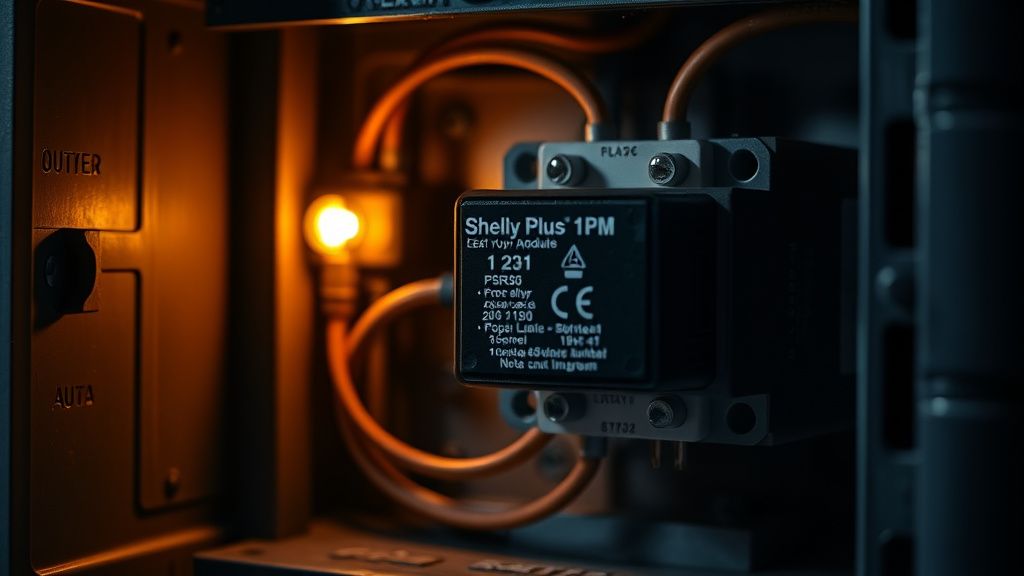
Why the Shelly Plus 1PM Wi-Fi Problem Is Not Simple
Here's the first thing to understand: the Shelly Plus 1PM runs an ESP32 chipset. The ESP32 is a capable dual-core processor, but its Wi-Fi stack has historically had edge-case issues with specific router configurations that most documentation won't acknowledge. Espressif has patched a lot of these, but the firmware Shelly ships on devices — especially older stock sitting in distribution warehouses — may not include those patches.
The device is strictly 2.4GHz only. No 5GHz. No dual-band. If your router broadcasts a unified "smart network" SSID that hands clients to either band automatically, you may be pushing the Shelly onto 5GHz without knowing it, and the device simply won't connect. This is a common issue for many smart devices, as highlighted in troubleshooting guides like Aqara Hub M2 Won't Connect to Wi-Fi? The 2.4GHz Reality Check Explained. It doesn't give you an error message that makes this obvious. The LED just blinks, and you sit there re-entering the same password six times wondering what you did wrong.
Second problem: Shelly's onboarding UI has gone through multiple iterations. The Shelly app, the Shelly Cloud web interface, and the local web UI (accessed directly via the device's AP mode IP address, 192.168.33.1) can behave differently depending on firmware version. If someone updated the app but not the firmware — or vice versa — the provisioning flow sometimes just breaks silently.
Third problem, and this one is almost never documented: WPA3 router security settings. Modern routers shipping with WPA3 or WPA2/WPA3 transition mode enabled can cause authentication handshake failures with ESP32-based devices running older firmware. The device attempts to connect, fails during the security negotiation, and the router logs show a failed association — but the Shelly shows no useful error state, a common frustration for various smart devices facing Persistent Network Sync Errors like the Philips Hue Bridge.
Step 1: Confirm Your Router's 2.4GHz Band Is Actually Broadcasting
This sounds obvious. It isn't. Modern mesh routers — Eero, Google Nest WiFi, TP-Link Deco, Orbi — increasingly push users toward band steering and unified SSIDs. The 2.4GHz band might technically be active but heavily deprioritized. Worse, some ISP-provided routers have the 2.4GHz band disabled by default in certain markets.
What you need to do:
- Log into your router admin panel (typically 192.168.1.1 or 192.168.0.1)
- Confirm the 2.4GHz SSID is enabled and visible
- Temporarily create a separate 2.4GHz-only SSID if your router supports it — something like "HomeNet_2G"
- Make that SSID have a simple password: no special characters, no spaces, ideally alphanumeric only (more on why in a moment)
The special character issue is real and has been discussed in multiple threads on the Shelly Community forums. Characters like @, #, !, $ in Wi-Fi passwords have caused provisioning failures because the device's web UI or app doesn't always escape them correctly during the configuration push. This is a known, unfixed class of bug that affects many ESP32-based devices, not just Shelly.
Community observation (Shelly Community Forum, multiple threads circa 2022–2024): Users repeatedly reported that changing their Wi-Fi password to remove special characters immediately resolved connection failures that factory resets and firmware reflashes had not fixed. This is not in the official documentation.
Step 2: Perform a Proper Factory Reset
Not a soft reset. A factory reset.
Here's how it actually works on the Plus 1PM:
- Power the device on
- Press and hold the reset button (small tactile button on the device body — you may need a pin or small screwdriver tip)
- Hold it for approximately 10 seconds until the LED starts flashing rapidly in a specific pattern (fast blue/white blink sequence depending on firmware version)
- Release
- The device will reboot and return to AP mode, broadcasting an SSID starting with
ShellyPlus1PM-followed by the device's MAC address suffix
What most guides don't tell you: the reset button timing is firmware-dependent. On some earlier firmware versions, 5 seconds was sufficient. On newer firmware, 10+ seconds is required. There have been reports from users on Reddit (r/homeautomation and r/selfhosted) where holding for 7 seconds appeared to trigger a reset animation but did not fully reset the device. When in doubt, hold longer.
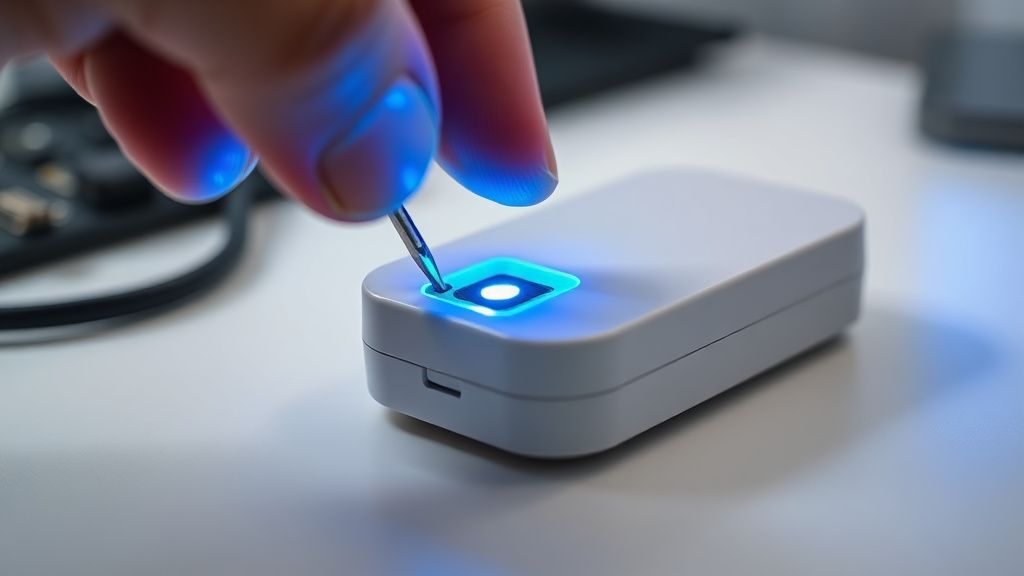
After the reset, the device should be broadcasting its own access point. Connect your phone or laptop to that AP network directly. Then navigate to 192.168.33.1 in a browser. This is the local web UI and it is, frankly, the most reliable way to provision the device if the app is being uncooperative.
Step 3: Use the Local Web UI at 192.168.33.1 — Not the App
The Shelly app is convenient for managing multiple devices. It is not always reliable for initial provisioning, especially on Android devices where background battery optimization can kill the Bluetooth or Wi-Fi scanning process mid-flow.
The local web UI at 192.168.33.1 is different. It runs directly on the device. You're talking to the device's own web server. No cloud intermediary. No app state issues.
Steps via local UI:
- Connect your phone/laptop to the
ShellyPlus1PM-XXXXXXAP network - Open a browser and go to
http://192.168.33.1 - Navigate to Settings → Wi-Fi
- Enter your home network SSID and password
- Save and wait for the device to attempt connection
Watch the LED behavior. A slow, rhythmic blink typically indicates the device is attempting to connect. A stable solid light indicates successful connection. If it returns to fast blinking (AP mode), the connection attempt failed.
Common failure at this stage: The browser on your phone may try to redirect to a captive portal check or decide the AP network has "no internet" and switch back to your home Wi-Fi automatically, breaking the provisioning session. This is an OS-level "network intelligence" feature that fights you. On Android, tap "Stay connected" when prompted. On iOS, the behavior is less predictable. Using a laptop with Wi-Fi is more reliable for this step.
Step 4: Check for WPA3 and Router Security Configuration Issues
If you've gotten this far and the device still won't connect, open your router admin panel and look at the wireless security settings for your 2.4GHz network.
Problematic configurations:
- WPA3-only mode: Not supported by ESP32 on older Shelly firmware
- WPA2/WPA3 transition mode: Sometimes works, sometimes doesn't — depends on how the router implements the transition
- 802.11r (Fast BSS Transition) enabled: Known to cause association failures on some ESP32 devices
- Minimum RSSI thresholds: Some enterprise-grade or prosumer routers refuse associations from clients below a signal threshold — unlikely at close range but worth noting
Fix: Set your 2.4GHz network to WPA2-PSK (AES) only. Disable 802.11r if it's enabled. Test the Shelly connection. If it works, you've identified the security mismatch. You can re-enable these features and use a separate legacy-device SSID for IoT devices — which is good security practice anyway.
Step 5: Firmware Update via Recovery Mode
If the device connects briefly and then drops, or connects but behaves erratically, you may be dealing with corrupted firmware. This can happen after a power interruption during an OTA update — a disturbingly common scenario given that these devices live inside electrical panels where power can be unpredictable during installation.
Shelly provides an OTA firmware update mechanism, but you need the device to connect to Wi-Fi to use it. Classic chicken-and-egg.
The workaround:
- Get the device into AP mode (factory reset)
- Connect to the device AP
- Navigate to 192.168.33.1
- Go to Settings → Firmware
- Check if there's a local firmware upload option — in some firmware versions there is, in others there isn't
If no local update is available, you'll need the device to actually connect to Wi-Fi to pull an OTA update. In that case, set up a mobile hotspot on your phone matching exactly the credentials the device was last configured with (same SSID, same password), position it close to the device, and let it connect via that hotspot. Once connected to your hotspot, it can pull the OTA update, and after updating, you reconfigure it for your actual network.
This method works. It's absurd that it's necessary, but it works.
Real Field Reports: Where This Actually Breaks
Let me give you the operational reality from actual deployment scenarios, not hypotheticals.
The Mesh Network Disaster
A contractor deploying eight Shelly Plus 1PM units in a commercial renovation ran into a situation where six connected fine and two absolutely refused. Same password, same router, same firmware version on all devices — they were from the same batch. After two hours of troubleshooting, the issue turned out to be channel congestion. The 2.4GHz network was on channel 6, which was heavily saturated in that building. The two failing devices happened to be in positions with marginally worse signal than the others. Switching the router to channel 1 and reducing channel width from 40MHz to 20MHz resolved it.
20MHz channel width on 2.4GHz is slower but more reliable in dense RF environments. ESP32 devices, in general, handle narrower channels better when signal is marginal.
The App Update That Broke Provisioning
In late 2023, multiple users on the Shelly Community Forum and on Reddit's r/homeautomation reported that a Shelly app update changed the provisioning flow in a way that caused failures on Plus series devices running specific firmware versions. The app was attempting to push configuration via a new protocol version the older firmware didn't support correctly. The fix was to either update device firmware first (via local web UI) or roll back the app — neither of which was documented in any official release notes.
The thread got long. People were frustrated. Shelly support responses were slow. Eventually a firmware patch resolved it, but the gap between "app update breaks provisioning" and "firmware patch fixes it" was several weeks during which new installations were genuinely painful.
The Special Character Password Saga
This one recurs constantly. Someone sets up their router with a password containing !, #, or $. Everything on their network works fine — phones, laptops, smart TVs. The Shelly won't connect. They reset it four times. They think the device is defective. They contact support, get generic troubleshooting steps, nothing helps.
Eventually — sometimes after weeks — they stumble on a forum post noting the special character issue. They change the password. Device connects immediately.
This is a UX failure with real operational cost. The device or app should validate the password at entry time and warn users about potentially problematic characters. It doesn't. Years in, it still doesn't.
Counter-Criticism and Honest Debate
Not everything is Shelly's fault here, and it's worth being honest about that.
The counterargument: ESP32-based devices connecting to 2.4GHz Wi-Fi are genuinely subject to environmental RF conditions that vary enormously. A device that works flawlessly in 100 installations may fail in the 101st because of router firmware differences, local RF interference, or ISP-provided gateway quirks that Shelly has zero control over. The platform is inexpensive and open — the tradeoff for $15 smart relay functionality is that you're not getting enterprise-grade provisioning infrastructure.
The counterargument from the engineering side: WPA3 compatibility is a standards-level transition happening across the industry. Every IoT device manufacturer using older ESP-IDF versions is dealing with the same thing. It's not negligence; it's the messy reality of a standards transition outpacing firmware update cycles on deployed hardware.
Where the criticism is fair and stands: The documentation. Shelly's official docs are persistently behind the operational reality. The special character password issue has been reported enough times that it should be in the official FAQ. The WPA3 caveat should be prominently documented. The AP mode browser redirection issue on mobile should be documented. These aren't obscure edge cases — they're common enough that they dominate support threads. The gap between forum knowledge and official documentation is a trust erosion problem that compounds over time.
There's also a legitimate criticism about the multi-generation firmware fragmentation. The Gen 1 and Gen 2/Plus Shelly devices use entirely different firmware architectures and different apps (the old Shelly 1 app vs the new Shelly app). Users with mixed fleets — very common among DIY smart home people who've been in the ecosystem for years — regularly get confused about which app to use with which device, which provisioning flow applies, and why instructions they find online don't match what they're seeing. Shelly has not handled this migration cleanly.
Advanced Troubleshooting: Static IP, DHCP Conflicts, and Network Isolation
If the device connects but disappears from the network intermittently, the problem is often DHCP lease related rather than Wi-Fi connection related.
Assign a static IP:
- Access the device local web UI (192.168.33.1 during AP mode, or the device's current IP on your network)
- Go to Settings → Network
- Switch from DHCP to Static IP
- Assign an IP outside your router's DHCP range (e.g., if DHCP is 192.168.1.100–200, assign 192.168.1.50)
- Set correct gateway (your router IP) and DNS (8.8.8.8 or your router IP)
This eliminates DHCP renewal failures and IP conflicts, which are surprisingly common in dense IoT deployments where the DHCP lease table fills up or the router is slow to reassign leases after power cycles.
Network isolation / IoT VLAN: If you're deploying multiple Shelly devices and using Home Assistant or similar platforms, putting IoT devices on a separate VLAN or IoT network segment is good practice. Be aware: if you isolate the IoT VLAN, you need to ensure your Home Assistant instance can reach the Shelly devices across the VLAN boundary, either via routing rules or by putting HA on both network segments. Shelly devices broadcasting mDNS for local discovery won't cross VLAN boundaries by default — you'll need an mDNS reflector or Avahi configured correctly.
This is well outside the scope of Shelly's documentation and gets into network engineering territory, but it's where serious home automation deployments inevitably land.
Integration with Home Assistant: Where Things Get Interesting
Home Assistant integration via the native Shelly integration (maintained in the HA core since 2021) has become the dominant use case for technically sophisticated users. The integration uses the local WebSocket API on Gen 2/Plus devices — no cloud dependency.
Known issues with HA integration and Wi-Fi instability:
- If the Shelly device drops Wi-Fi and reconnects, HA sometimes fails to rediscover it automatically, especially if the IP changed due to DHCP reassignment. Static IP assignment (above) essentially eliminates this.
- The
Bu makale affiliate linkleri içermektedir.