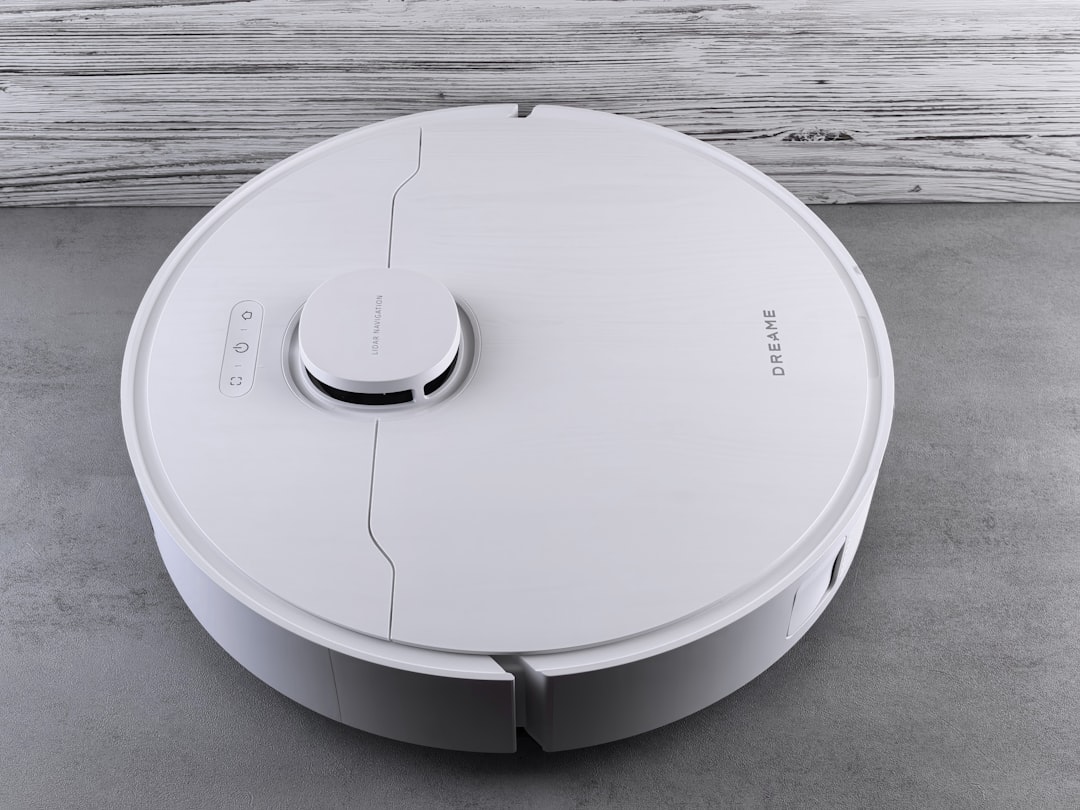
Quick Answer: The Dreame L20 Ultra fails to map room layouts primarily due to LiDAR obstruction, firmware bugs in the SLAM algorithm, low battery during initial mapping runs, dirty sensors, or corrupted map data. A factory reset combined with a clean, unobstructed first-run mapping session resolves the majority of cases. Full fix sequence below.
There's a particular kind of frustration that comes from watching a $900 robot vacuum spin in confused circles in the middle of your living room. You bought the Dreame L20 Ultra because the marketing promised autonomous intelligence, obstacle avoidance, and room-level granularity. For issues with another Dreame model, such as the Dreame L10s Ultra not emptying, there are often simple fixes to try first. What you got instead is a machine that keeps merging your kitchen with your hallway, refuses to recognize your bedroom as a separate space, or — in the worst cases — just maps a blank white void and calls it done.
I've torn apart more robot vacuums than I care to count. The L20 Ultra is not a bad machine. It's actually a genuinely impressive piece of hardware when it works correctly. But the mapping system — built around a combination of LiDAR, structured-light 3D sensing, and Dreame's proprietary SLAM (Simultaneous Localization and Mapping) firmware — has specific failure modes that the official support documentation either glosses over or misrepresents entirely.
This guide is not going to tell you to "restart the app and try again." That advice is useless. What follows is a systematic, field-tested breakdown of why the L20 Ultra's mapping fails, what's actually happening inside the system when it does, and how to actually fix it — including the fixes that Dreame's own support team won't volunteer unless you push them.
Understanding What "Mapping" Actually Means on the L20 Ultra — LiDAR SLAM and Structured Light Fusion
Before you can fix a mapping problem, you need to understand what the L20 Ultra is actually trying to do when it maps a space. This is not a simple "scan the room" operation. The system is running a continuous real-time process that involves at least three distinct sensor modalities working simultaneously.
The primary navigation sensor is a rotating LiDAR unit mounted on top of the unit — the small raised dome. This fires laser pulses horizontally and measures time-of-flight to build a 2D plane-slice representation of the room. If you're experiencing similar issues with other devices, you might find our guide on how to fix persistent LiDAR errors on your Eufy X10 Pro Omni helpful. Walls, furniture legs, and large static objects all register clearly. This is the backbone of the map.
Layered on top of that is the structured-light 3D obstacle avoidance system (Dreame calls this "3D Obstacle Recognition"), which uses a camera and projected light pattern to detect objects in the driving path — cables, shoes, pet waste. This system contributes contextual depth data that can influence how the robot interprets room boundaries.
Then there's wheel odometry — the robot tracks its own movement through encoder data on the drive wheels, which gets fused with the sensor data to maintain position estimates when sensor data is ambiguous (e.g., in a long featureless hallway).
The SLAM algorithm's job is to take all of this and produce a coherent, internally consistent map. When any one of these inputs is degraded, corrupted, or contradictory, the SLAM system either produces garbage output or — critically — silently produces output that looks valid but is wrong. Sensor issues are common in robot vacuums; for instance, you might want to learn how to fix persistent cliff sensor errors on a Roomba j7+. That second failure mode is the one that makes users lose their minds, because the app shows a map, the robot seems confident, but rooms are merged, walls are missing, or the robot physically drives through areas it has mapped as walls.
Why the LiDAR Tower Is Your First Suspect
The L20 Ultra's LiDAR dome rotates at speed. It's a mechanical system. Mechanical systems accumulate debris. A small amount of dust or pet hair lodged between the rotating ring and the dome housing can introduce enough vibration or resistance to degrade the scan data quality measurably. You won't hear a grinding noise necessarily. The unit will just quietly produce worse maps.
More critically: the LiDAR's horizontal scan plane sits at a specific height off the floor. If your room has furniture with glass panels (certain coffee tables, TV stands), mirror-covered sliding closet doors, or dark matte walls (which absorb rather than reflect laser light), the LiDAR returns will be partial, inconsistent, or missing entirely. The SLAM system will try to fill in those gaps through interpolation, and the results are frequently wrong.
This is not a Dreame-specific problem. This is a physics problem. But Dreame's SLAM implementation appears to be more aggressive about "filling in" missing data than some competitors, which means the errors are less obvious and harder to diagnose.
The Real-World Failure Taxonomy — What Users Are Actually Reporting
Across Reddit's r/RobotVacuums, the Dreame-specific Discord communities, and the Amazon/Best Buy review threads, the L20 Ultra mapping complaints fall into roughly five recognizable patterns:
Pattern 1: The Merged Rooms Problem The robot creates a map, but two or three rooms appear as one large undivided space. Room dividers in the app do nothing because the underlying map data doesn't have a wall where the physical doorframe is. This is almost always a LiDAR geometry issue — the doorframe is narrow enough that the LiDAR scans through it at certain angles, and the algorithm doesn't have enough consistent "wall" data to register a boundary.
Pattern 2: The Phantom Wall The robot maps a wall that doesn't exist, typically in an open-plan space. It refuses to clean an area it has decided is blocked. Users on multiple threads report that this sometimes correlates with the robot's mapped path crossing a glossy floor transition (e.g., hardwood to tile) at a specific angle.
Pattern 3: The Blank Map / Failed First Run The robot returns to the dock after what appears to be a complete run, and the app shows a nearly empty map or just the area immediately around the dock. This is almost always either a low battery issue (the robot returned to dock before completing enough coverage), a firmware crash during the mapping run, or a Wi-Fi connectivity drop that caused the map upload to fail. The map was generated locally on the robot — but it didn't sync.
Pattern 4: The Persistent Loop / Localization Failure The robot starts a cleaning run, and you can watch in the app as its position indicator starts drifting — moving away from where the robot physically is. Eventually it either gets stuck, returns to dock confused, or cleans the same 3-square-meter patch repeatedly. This is a localization failure, not a mapping failure, but users conflate the two because both show up as "the map is broken."
Pattern 5: Room Labels Disappear After Firmware Update This one is firmware-specific and has been documented across multiple update cycles. After an OTA firmware update, previously named and configured rooms revert to unnamed or merged states. The physical map data may be intact on the device but the room configuration metadata — stored server-side in Dreame's cloud — gets out of sync. This is a real architectural problem, not user error, and Dreame's official support response to it has historically been inadequate.
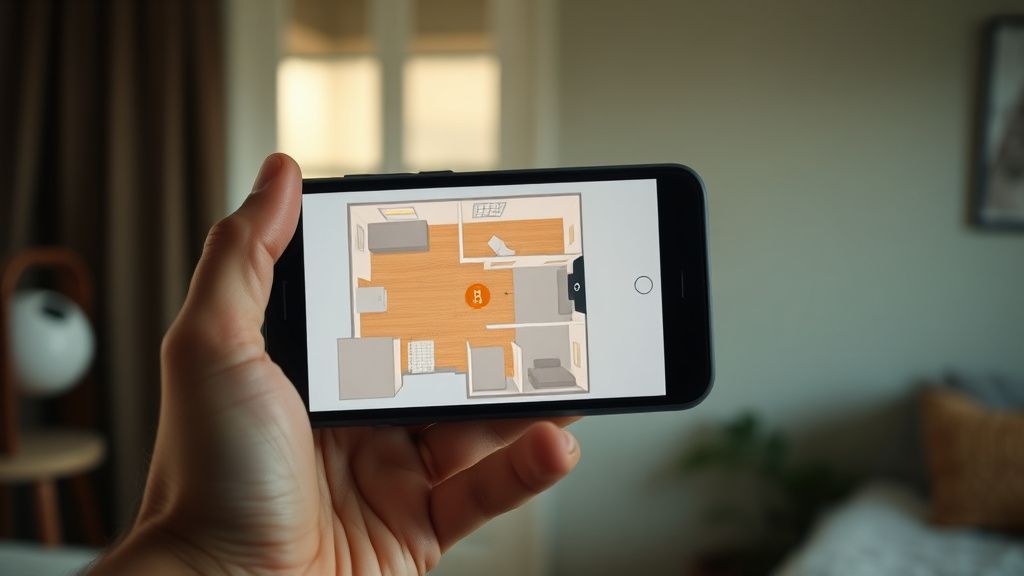
The Systematic Fix Sequence — In the Order That Actually Works
Don't jump to factory reset first. Work through this in sequence. Each step takes maybe five minutes. Skipping steps is how you end up resetting the robot three times and still having the same problem.
Step 1: Physical Sensor Audit — The Part Nobody Does Properly
Power off the robot completely. Don't just put it in standby.
LiDAR dome inspection: Gently rotate the dome by hand. It should spin freely with minimal resistance. If you feel any grinding, stiction, or hear any scraping, there's debris in the bearing housing. Use a can of compressed air to clear the gap between the dome and the robot body. Do not use liquid cleaners near the LiDAR unit.
LiDAR window cleaning: The transparent ring around the dome base is the LiDAR's optical window. Clean it with a dry microfiber cloth. Fingerprints, dust film, and pet hair on this surface directly degrade scan quality. This is documented in Dreame's own manual but positioned as a once-a-month suggestion — it should be a before-every-mapping-session requirement.
3D sensor and camera cleaning: The front-facing sensors (the small cluster of lenses and projectors on the front bumper area) need to be clean. Use a dry soft cloth. Do not press hard.
Cliff sensors (bottom): Flip the robot over. There are multiple downward-facing cliff sensors around the perimeter. These are infrared proximity sensors. If any are partially blocked by residue (wax from certain floor polishes is a known culprit), the robot's movement behavior becomes erratic during mapping.
Wheel and brush check: Debris caught in the side brush or around the main brush module can cause the robot to pull slightly to one side. Combined with the rotational error that accumulates in wheel odometry, this small physical bias translates into subtle but real map drift over a long mapping run.
Step 2: Environmental Setup for Mapping
The L20 Ultra was designed to map in specific environmental conditions. Running an initial mapping in non-ideal conditions produces a bad base map that will cause problems indefinitely until you remap from scratch.
Lighting: The 3D obstacle sensor and the onboard camera need ambient light to function properly. The robot should not attempt a mapping run in a completely dark space. You don't need full daylight, but complete darkness is a problem. Normal indoor lighting is fine.
Furniture position: Map with furniture in its typical positions. If you regularly move furniture, map with it where it usually lives. The LiDAR builds a static world model — unexpected furniture in a "clean" space during mapping creates a model that doesn't match reality during cleaning runs.
Open doors: For the robot to recognize room boundaries correctly, internal doors should be open during mapping. Closed doors during mapping mean the robot never sees those spaces — it maps them as walls. Later, when you open the doors and run a cleaning, the robot either fails to navigate into those rooms or extends the existing map in a way that frequently creates boundary errors.
Clear the floor: This is obvious but needs specificity. It's not just about the robot's path. Cables on the floor, shoes near walls, and objects in doorways all affect where the LiDAR can and cannot see — which directly determines where the algorithm thinks walls are.
Battery level: Start a mapping run only when the robot is at or near 100% battery. The L20 Ultra's mapping run for a multi-room home can exceed 90 minutes. If the battery runs low mid-run, the robot returns to dock and the "resume" behavior (re-docking, charging partially, continuing) introduces localization re-initialization steps that frequently produce map artifacts. A full-battery, uninterrupted single-run map is consistently better than any interrupted map.
Step 3: Delete the Existing Map and Do a Dedicated Mapping Run
In the Dreame app: go to Settings → Map Management → Delete Map. Confirm. This clears the stored map data.
Now, do not start a cleaning run. The L20 Ultra has a dedicated mapping-only mode (sometimes called "Quick Mapping" or "Mapping Run" depending on your firmware version — it's in the app's main menu under the robot's function options). Use this. Do not use a cleaning run as your first map generation method.
The dedicated mapping mode is faster, more methodical, and does not simultaneously run suction and mop functions that can affect sensor readings and movement behavior. It also produces a cleaner initial map that's easier for the SLAM system to work with.
Stay nearby during the mapping run. If the robot gets stuck, free it immediately and let it continue — don't let it spin in place for extended periods trying to self-escape, as this introduces rotational error into the odometry.
After the mapping run completes, do not immediately send the robot on a cleaning run. Wait for the map to fully upload to the Dreame server (the app will show the map stabilizing and rooms auto-detecting). This can take 2-3 minutes. If you launch a cleaning run before the map is fully processed, you can catch the system in a partially-committed state.
Step 4: Room Configuration — Why Auto-Detection Frequently Gets It Wrong
The L20 Ultra's automatic room segmentation algorithm tries to identify individual rooms by detecting doorways, analyzing traffic flow patterns in the map, and applying heuristics about typical room geometry. It is frequently wrong for non-standard floor plans.
Open-plan apartments are the worst case. A large undivided space with a kitchen island and a couch as the only dividers gives the algorithm nothing to work with. It will either lump everything into one room or make arbitrary cuts that don't correspond to any physical boundary you care about.
Manual room division via the app is the actual answer here, and it works well when the underlying map data is clean. Use the "Divide Room" function in the app's Map Edit section to manually draw room boundaries. The key operational reality: you need to draw these boundaries at or near actual physical walls or thresholds — drawing them through open space in the middle of a room works on paper but causes the robot to behave erratically at the boundary during cleaning runs, because it has no physical landmark to anchor the boundary to.
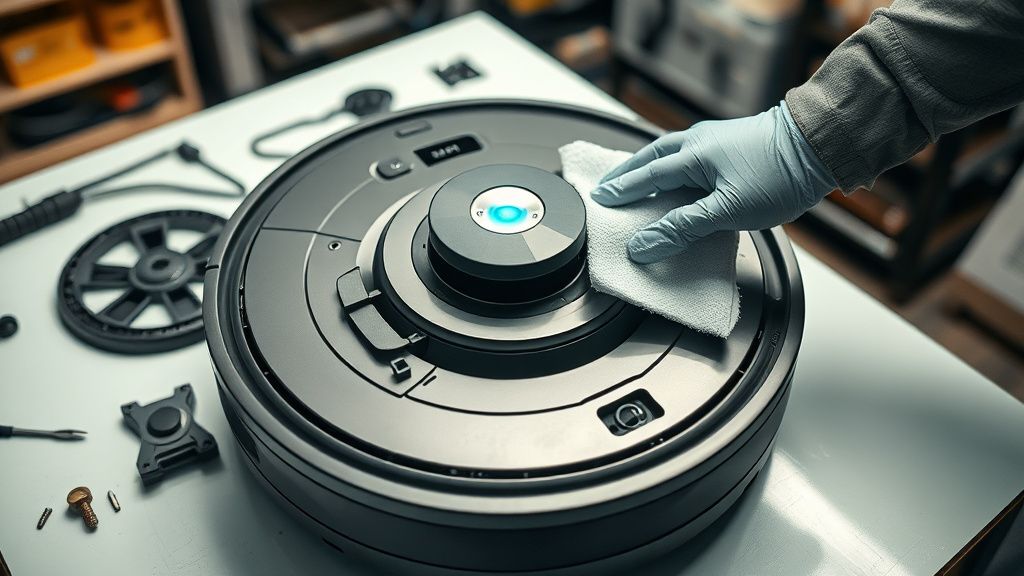
Step 5: Firmware Version Check and the OTA Problem
This is where things get uncomfortable. Dreame's firmware update history for the L20 Ultra is not clean. Several updates — particularly in late 2023 and through 2024 — introduced regressions in SLAM behavior. Users on the r/RobotVacuums subreddit and on the Dreame community forums documented specific firmware versions that actively made mapping worse. The firmware versions in question were later patched, but the communication around this was poor.
The current problem: Dreame does not offer firmware rollback through the official app. If a bad firmware version pushed OTA breaks your mapping, your official options are limited to waiting for a fix or contacting support to potentially flash a specific version — a process that Dreame support will not guide you through on the first call.
Check your current firmware version: In the app, go to Settings → Device Info → Firmware Version. Note the version number.
Cross-reference against the current known-good version on the Dreame community forums or the r/RobotVacuums wiki before doing a factory reset, because a factory reset will re-initialize the firmware update process and you may reinstall a problematic version automatically.
If you're on a known problematic firmware version and you can't roll back, the practical workaround is to disable automatic updates in the app settings and wait for the next patch before remapping. This is a frustrating position to be in with a device in this price bracket, but it's the operational reality.
Step 6: Factory Reset — The Last Resort That Should Be Done Correctly
A factory reset on the L20 Ultra clears all local map data, all settings, and re-registers the device to its base firmware state. It does not delete your Dreame account data. But it does disassociate the robot from your account temporarily, requiring re-pairing.
To factory reset:
- Press and hold the power button and the dock button simultaneously for approximately 5 seconds (timing varies slightly by firmware version — you should hear a voice prompt confirming the reset).
- Alternatively, in the app: Settings → Reset Robot.
After the reset, the app will walk you through re-pairing. Do this carefully — a common error point is pairing to a 5GHz Wi-Fi network instead of 2.4GHz. The L20 Ultra's Wi-Fi module is 2.4GHz only. Connecting to a 5GHz network creates an apparent connection that fails during operation, which shows up as app connectivity errors that users frequently misattribute to Bluetooth or hardware failure.
After factory reset and re-pairing: let the firmware update complete before doing anything else. Wait for the robot to update, reboot, and stabilize. Then go back to Step 2 and run the mapping sequence from the beginning.
Real Field Reports — What Repair Technicians and Power Users Actually See
I've seen units come in where the owner had reset the robot five times and was convinced the hardware was defective. In three of those cases, the issue was that the owner's apartment had a floor-to-ceiling mirror covering an entire wall. The LiDAR was reading that mirror as a corridor extending beyond the apartment. The SLAM algorithm was faithfully mapping a room that didn't exist. Adding a piece of dark furniture in front of the mirror's lower section — just enough to break the LiDAR's line of sight — fixed the mapping without any software changes.
One consistent community report: the L20