The Eufy X10 Pro Omni's LiDAR sensor sits inside a spinning turret on top of the unit — a 360-degree time-of-flight laser that's doing somewhere between 4,000 and 5,000 distance measurements per second. When it works, the mapping is genuinely impressive, much like the precision expected from a perfectly running home appliance, such as when you resolve a Bosch Dishwasher E15 error. When it breaks, it tends to break in ways that are deeply confusing to diagnose because the error codes Eufy shows you are almost deliberately vague.
Let me be direct: the most common LiDAR errors on the X10 Pro Omni are not hardware failures. They're software state corruption, firmware update casualties, and dock/sensor communication breakdowns that get misread as physical damage. That doesn't mean the hardware never fails — I've seen plenty of dead LiDAR modules — but if you're getting a blinking red light or an "obstacle detection error" and you haven't physically broken the machine, there's a good chance you're fixing a software problem, not ordering a replacement turret.
Quick Answer: Most Eufy X10 Pro Omni LiDAR errors (blinking red turret light, mapping failures, "obstacle detected" loops) are caused by firmware state corruption, blocked sensor windows, dirty turret bearings, or dock communication failures — not dead hardware. Start with a full factory reset, clean the LiDAR window and turret base, and re-flash firmware before assuming the LiDAR module itself is dead.
What the LiDAR System Actually Does — And Where It Can Break
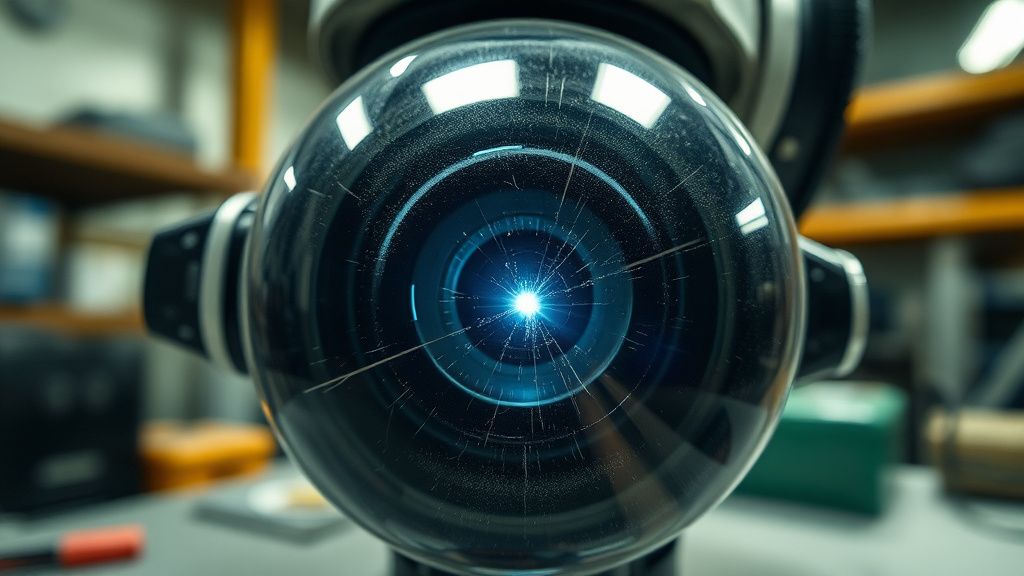
The X10 Pro Omni uses what Eufy calls "iPath Laser Navigation." The LiDAR unit is a rotating module — a motor-driven assembly that spins the laser emitter and receiver at consistent RPM. The robot's onboard processor ingests data to build a 2D map, ensuring stability in complex tasks—similar to how a PS5 Pro error CE-108255-1 fix restores gaming performance.
There are at least four distinct points in this chain that can fail:
1. The LiDAR motor and bearing assembly The spinning turret runs continuously during operation, a mechanical process that, like a Philips Airfryer convection fan noise issue, requires smooth motion to operate correctly. Dust and debris can cause failures in many smart devices, much like how connectivity issues may require you to address a Hue Bridge not syncing. When the bearing gets gummed up, the motor draws more current than expected. The controller interprets inconsistent rotation speed as a sensor fault.
2. The optical window The transparent dome over the LiDAR emitter/receiver accumulates dust, fingerprints, and — this is incredibly common — a thin film of cleaning solution splatter from the mop module. The X10 Pro Omni has a mop that flings water vapor, creating a cleaning environment that is generally stable, unlike the frustration of a Windows 11 boot loop. That mist drifts upward and deposits on the LiDAR dome. The robot's mapping accuracy degrades gradually, causing an error, which is just as disruptive as an Apple TV 4K black screen interrupting your entertainment.
3. The firmware state machine Eufy's firmware uses a state machine to track the robot's operational mode. After an aborted cleaning cycle — power cut, battery depletion mid-run, app crash, or a hard dock collision — the state machine can get stuck in an error state that looks like a hardware fault. The robot boots up thinking it's in the middle of a failed localization event and immediately throws LiDAR errors even in a completely clear environment.
4. The dock communication link The X10 Pro Omni communicates with its auto-empty dock via infrared. The dock sends a homing beacon; the robot triangulates its position relative to the dock using both the dock IR and the LiDAR map. If the dock IR emitter is dirty or misaligned, the robot enters a docking failure loop that cascades into LiDAR error codes because the localization routine can't complete.
These four failure modes produce overlapping symptoms. That's what makes this frustrating.
Reading the Error Codes — What Eufy Actually Tells You (and What It Doesn't)
Eufy's error notification system is, frankly, one of the weaker parts of this product's design. The app gives you a general error message. The robot gives you a blinking light pattern. Neither is particularly useful for pinpointing which of the four failure modes you're dealing with.
The most commonly reported LiDAR-related errors on the X10 Pro Omni:
- "Please move the robot to a new location" — This is Eufy's catch-all localization failure message. The robot lost its position in the map. Could be dirty LiDAR window, corrupted map data, or a turret bearing issue.
- Red blinking LiDAR turret light — The turret motor controller detected an anomaly. RPM out of spec, power draw spike, or the controller simply didn't receive a "ready" signal from the LiDAR module after startup.
- Continuous circular movement in place — The robot is in localization recovery mode, spinning to gather enough angular data to re-establish position. If it doesn't stop after 30-45 seconds, it's stuck.
- "Obstacle detected, unable to proceed" in open space — False positives from a dirty or fogged LiDAR dome, or a firmware state that hasn't cleared a previous obstacle flag.
- App shows "Robot disconnected" immediately after error — Usually a Wi-Fi stack crash triggered by the LiDAR error handler. Separate issue from the LiDAR itself but commonly coincides with it.
There is no diagnostic mode that dumps LiDAR telemetry to the app. No RPM readout. No raw scan visualization. You're flying blind, and that's a design decision that genuinely penalizes users who are trying to troubleshoot responsibly.
On Reddit's r/RobotVacuums and various Eufy community threads, this opacity comes up constantly. One thread from late 2023 titled "X10 Pro Omni keeps saying move to new location but I've tried 5 rooms" accumulated over 200 comments, most of which were users comparing workarounds because official support was giving generic reset instructions.
Step-by-Step Repair Protocol
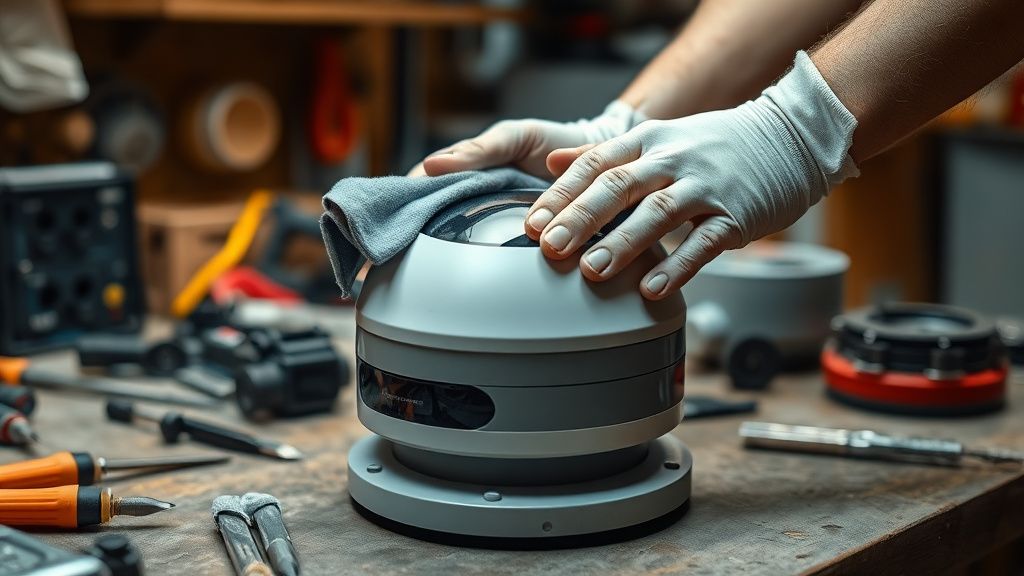
Step 1: Clean the LiDAR Dome and Turret Base — The Overlooked 5-Minute Fix
Before anything else. I mean it. The number of times I've seen someone skip this step and spend two hours resetting firmware is embarrassing.
What you need:
- Dry microfiber cloth (no cleaning solution on or near the dome)
- Compressed air can
- Cotton swabs
Process:
- Power the robot off completely. Don't just pause it — hold the power button until it shuts down.
- Look at the LiDAR dome from an angle under a bright light. You're looking for a haze, water spots, or a film of fine particulate. It's often invisible at a straight-on angle.
- Wipe the dome gently with a dry microfiber cloth in a circular motion. Don't press hard — you're removing surface contamination, not polishing glass.
- Take the compressed air and blast the gap at the base of the turret (where the spinning assembly meets the robot body). This gap accumulates hair and dust that eventually binds the bearing.
- Manually rotate the turret with your finger. It should spin freely and smoothly with very slight resistance. If it stutters, feels gritty, or has a hard spot, you have a bearing contamination issue (see Step 4 below).
After cleaning, boot the robot and let it attempt a fresh mapping run in a cleared room. Many errors resolve at this stage.
Step 2: Force a Clean Software State — Full Factory Reset
If cleaning didn't resolve it, or if the robot is exhibiting firmware-state errors (error on startup before it even moves), you need to clear the state machine.
Factory reset procedure for X10 Pro Omni:
- Press and hold the power button and the edge-clean button simultaneously for approximately 5-7 seconds.
- The robot will announce a voice prompt confirming reset (varies by firmware version — some say "restoring factory settings," some just beep).
- The reset wipes all saved maps, room configurations, schedules, and Wi-Fi credentials.
- After reset, do NOT immediately reconnect to Wi-Fi and push the robot into a full cleaning run. Let it sit for 60 seconds powered on, then place it in the center of your largest open room and let it do an initial mapping pass with zero scheduled tasks.
Why this matters: The firmware state machine reinitializes cleanly. Whatever corrupted session data was telling the LiDAR controller it was in a fault state gets cleared. A significant portion of persistent LiDAR errors are resolved by this step alone.
Caveat: Some users on the Eufy Community Forum have reported that factory reset did not clear their LiDAR error if it coincided with a failed OTA firmware update. If your robot started showing errors within 24-48 hours of a firmware update notification, you likely have a partial flash failure (see Step 3).
Step 3: Addressing Firmware Flash Failures
This is where it gets uncomfortable. Eufy has pushed firmware updates to the X10 Pro Omni that have created LiDAR errors on units that were previously working fine. This is documented in community threads and app reviews. Eufy's response has generally been to issue subsequent patch releases, but the timing gap — between a bad update going out and the fix arriving — can be weeks.
Identifying a firmware-related LiDAR error:
- Error began within 24-48 hours of an automatic update
- Factory reset does not clear the error
- Multiple users on r/RobotVacuums or the Eufy app review section reporting the same error around the same time
What you can do:
- Check the Eufy Home app: Settings → Device → Firmware Version. Note your current version.
- Check community forums for whether your specific firmware version has known LiDAR issues.
- Contact Eufy support via the app and request a firmware rollback or a firmware push to the latest patch. Eufy support can push firmware updates manually to your device that aren't yet available through the standard OTA channel.
The honest reality: you can't sideload firmware on the X10 Pro Omni. There's no USB access, no recovery mode with manual flash capability. You're entirely dependent on Eufy's support pipeline for firmware remediation. This is a real structural problem with the device's serviceability.
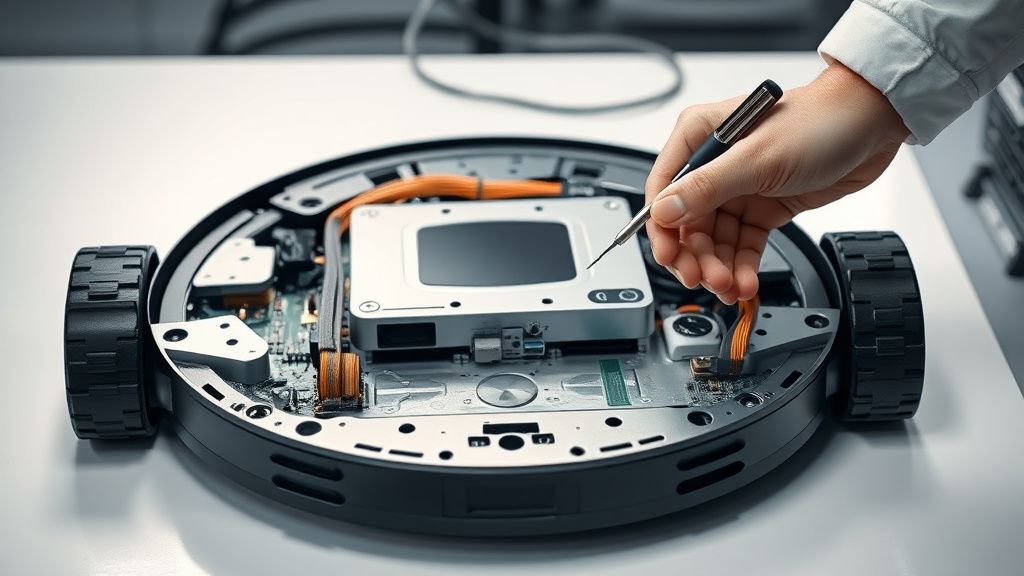
Step 4: Turret Bearing Cleaning and Lubrication
If the turret has physical resistance — you felt it in Step 1 — this is a mechanical intervention. It's not complicated, but it voids your warranty if the unit is still under coverage. Factor that in.
What you'll need:
- Phillips head screwdriver (PH1)
- Plastic pry tool or guitar pick
- Isopropyl alcohol (90%+) and cotton swabs
- Appropriate lubricant: PTFE-based dry lubricant spray, not WD-40, not silicone, not any oil-based lubricant. Oil-based lubricants attract dust and will make the problem worse within weeks.
Disassembly (basic turret access):
- Power off completely.
- The LiDAR turret assembly on the X10 Pro Omni is accessible from the top of the unit. There are typically 2-3 Phillips screws around the turret base hidden under the outer trim ring.
- Carefully pry the trim ring using a plastic tool. The clips are plastic and will crack if you use metal pry tools aggressively.
- Once the turret is accessible, inspect the bearing track at the base. You'll likely see a visible ring of compacted dust and hair.
- Clean the bearing track with IPA and cotton swabs. If the bearing balls are visible, clean each one.
- Allow full evaporation (minimum 10 minutes), then apply a minimal amount of PTFE dry lubricant to the bearing track.
- Manually rotate to distribute, wipe excess, reassemble.
After reassembly, the turret should spin with essentially zero resistance and zero hard spots.
Step 5: Dock Infrared Emitter Cleaning and Alignment
This is the most overlooked element of LiDAR troubleshooting because users don't intuitively connect "dock is dirty" with "LiDAR error." But the robot's localization routine requires a successful dock position fix. If the dock IR emitters are compromised, the robot can't complete the routine.
IR emitter location: On the front face of the dock, there are typically 3-4 IR emitter/receiver pairs. They look like dark plastic windows, slightly recessed.
Cleaning: Wipe with a dry microfiber cloth. Do not use cleaning sprays anywhere near these windows.
Alignment check: The dock must be on a flat surface, against a wall, with at least 1.5 meters of clear space in front and to each side. If the dock has moved even slightly from where the robot learned its position, the localization fails. After any dock move, trigger a new mapping run.
Real Field Reports: What Technicians and Power Users Are Actually Seeing
The X10 Pro Omni's LiDAR problem distribution, based on community observation (not Eufy-published data, which doesn't exist publicly), skews heavily toward software state and contamination issues rather than hardware failure.
On a GitHub discussion thread associated with the Valetudo project (the open-source robot vacuum firmware alternative), users attempting to understand the X10 Pro Omni's communication protocol noted that the LiDAR module appears to be a modified version of a common OEM LiDAR unit used across multiple Anker/Eufy platforms. The implication is that the hardware is relatively reliable — it's the same module, roughly, that survives in other robots. What varies is the firmware layer managing it.
One user on the Eufy Community Forum (thread: "X10 Pro LiDAR Error after 3 months, warranty replacement sent same unit") reported receiving a warranty replacement unit that showed the same LiDAR error within a week of setup — pointing to a firmware issue, not hardware, since two separate units couldn't both have the same hardware failure in the same location after the same time period.
Another pattern reported in multiple r/RobotVacuums threads: users who run the X10 Pro Omni in humid environments (bathrooms, kitchens with steam) report LiDAR dome fogging issues at higher rates. The mop module's steam doesn't help, but ambient humidity is a consistent factor.
Counter-Criticism: Is the X10 Pro Omni's LiDAR Architecture Fundamentally Flawed?
Some technically sophisticated users argue the fundamental problem is that Eufy placed the mop water reservoir and misting system directly below the LiDAR turret in a device that's meant to simultaneously vacuum and mop. The thermal and humidity plume from active mopping creates a contamination pathway to the LiDAR dome that's architectural, not accidental. Roborock and Dreame made different packaging decisions on their 2-in-1 units — not necessarily better in all respects, but they didn't put the mop directly under the navigation sensor.
Eufy's counter would presumably be that the dome is designed to be easily wiped clean, and maintenance is part of robot vacuum ownership. That's fair to a point. But the rate at which users need to clean the dome on the X10 Pro Omni compared to a non-mop LiDAR robot is noticeably higher, and Eufy's documentation doesn't make this frequency of maintenance explicit enough at the point of purchase.
There's also a legitimate criticism about error code transparency. Roborock's app, for all its faults in other areas, gives more granular error information. A sensor RPM anomaly shows up as a different code than a localization failure. On the X10 Pro Omni, everything collapses into a small set of vague messages. For a $700+ device, that's a design choice that serves Eufy's support call volume more than it serves users.
When You Actually Have a Dead LiDAR Module
After all of the above — full clean, factory reset, firmware check, bearing service, dock alignment — if the turret still shows red and the robot still won't map, you likely