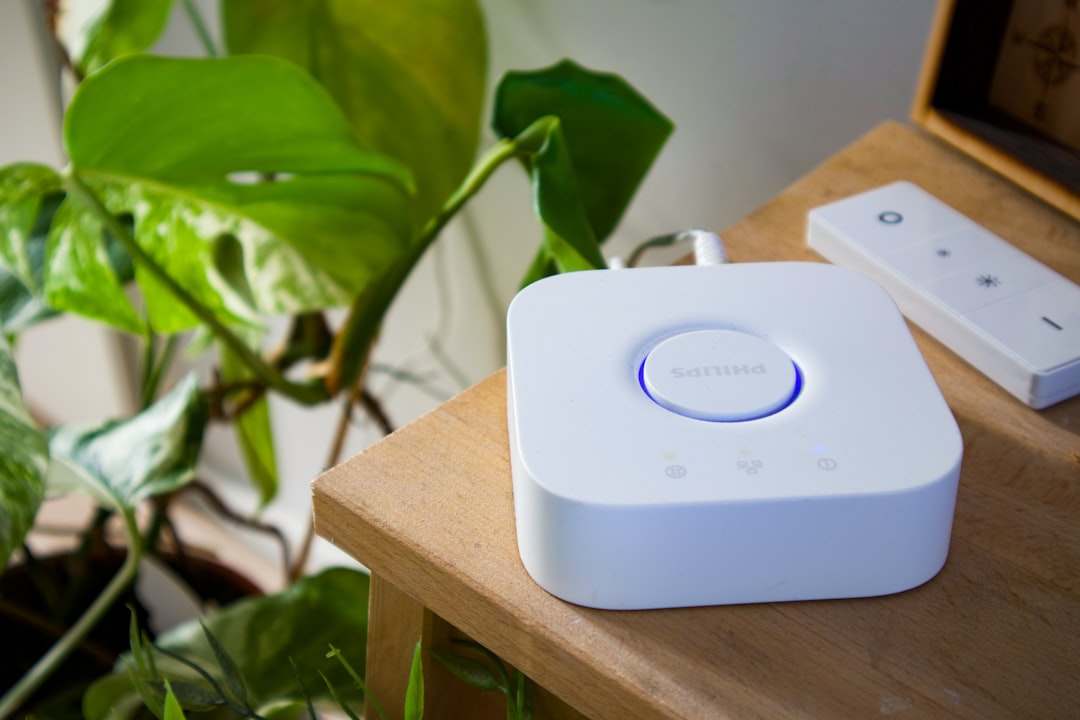
Quick Answer: Hue Bridge sync errors almost always trace back to a small cluster of network port conflicts, DHCP assignment chaos, or firewall rules silently blocking outbound traffic on ports 80, 443, and the undocumented UDP 5353 mDNS pathway. Fix the port setup first before you blame the hardware. Most bridges aren't broken — they're just misconfigured at the network layer.
Let me be blunt with you: the Philips Hue Bridge is not a complicated piece of hardware. Inside that little white hockey puck there's a Freescale i.MX processor running an embedded Linux stack, a Zigbee radio module, and an Ethernet controller. The firmware is reasonably stable. The hardware almost never fails in isolation. What does fail — constantly, repeatedly, in ways that drive users absolutely insane — is the network environment it gets dropped into.
I've seen this pattern hundreds of times. Someone buys a Hue starter kit, gets it running smoothly on a basic home router, but if your network is already showing signs of instability, you might first want to consult our guide on how to stop Wi-Fi 7 dead zones or resolve issues if you find your Wi-Fi 7 router underperforming, as network infrastructure is critical to smart home reliability. The app just says "Bridge not found" or "Sync error" and leaves the user completely in the dark.
The real problem is that the Hue Bridge operates on a surprisingly fragile combination of network dependencies that most people never know exist until they break them.
What the Bridge Actually Needs From Your Network — Layer by Layer
Before we touch a single port setting, let's understand what the bridge is actually doing on your network, because this context changes everything about how you approach the fix.
DHCP Lease Stability and Static IP Assignment
The Hue Bridge requests a DHCP lease when it boots. That's normal. The problem is that consumer routers — and some enterprise-grade mesh systems — have DHCP lease renewal behaviors that can temporarily knock the bridge off its assigned IP. When that happens, any device that was communicating with the bridge using the old IP address (like the Hue app on your phone, or a HomeKit hub) gets a connection refused error.
The bridge doesn't broadcast its new IP address loudly. It relies on mDNS — multicast DNS — to advertise itself on the local network using the _hue._tcp service type. If your router or mesh system is blocking mDNS propagation between network segments, or if you're running multiple VLANs without mDNS repeater configuration, the bridge becomes effectively invisible even when it's fully online and functioning perfectly.
This is the single most common root cause of "bridge not found" errors that users misdiagnose as sync failures.
The fix for this layer is straightforward: assign the Hue Bridge a static DHCP reservation using its MAC address, which ensures your network remains stable just as you would when performing maintenance on other hardware, such as when you fix ghosting and motion blur on your Samsung QLED TV. Log into your router admin panel, find the DHCP reservation or "static lease" section, and lock the bridge to a specific IP. Write that IP down somewhere. You'll need it again.
Port 80 and Port 443 — The Obvious Ones
The bridge communicates with api.meethue.com (and the newer api2.meethue.com endpoint) over standard HTTP and HTTPS on ports 80 and 443. Most home networks don't block these. Enterprise networks sometimes do, especially if you're running the bridge in an office environment with restrictive outbound filtering.
If you're in a corporate environment and trying to get Hue working — I've seen this in small offices with smart lighting setups — your IT firewall policy is almost certainly the culprit. The bridge needs unrestricted outbound access to Signify's cloud endpoints on both ports, ensuring that your connection is as reliable as a high-performance setup, preventing issues similar to those found when users try to identify and fix LG OLED screen flickering.
The local API — which third-party apps like Home Assistant, iConnectHue, and diyHue depend on — operates on port 80 (HTTP) and port 443 (HTTPS) on the bridge's local IP address. Some users, in an attempt to "secure" their network, apply local firewall rules or client isolation settings that block device-to-device communication on these ports. That immediately kills every third-party integration.
Critical distinction: The Hue app itself can sometimes still work even when local API access is broken, because it can route commands through Hue's cloud. Your automations and third-party integrations will silently die while the official app appears fine. This creates a deeply confusing diagnostic situation.
UDP Port 5353 — The mDNS Problem Nobody Talks About
This is where most guides stop, and it's a mistake. UDP port 5353 is used for mDNS — the Bonjour/Zeroconf protocol that allows the Hue app and other devices to discover the bridge automatically without knowing its IP address.
If you're running a network with AP isolation enabled (common on guest networks and some security-conscious home setups), mDNS packets are filtered. The bridge is running. It's connected. You can ping it. But the Hue app on your phone cannot discover it because the mDNS advertisement never reaches the phone's network segment.
On systems like UniFi (which is increasingly common in prosumer home setups), you need to specifically enable the mDNS repeater or configure an mDNS reflector if the bridge and your phone are on different VLANs. Home Assistant users running UniFi setups hit this wall constantly. There's a 400+ comment thread on the Home Assistant community forum documenting this exact failure mode, with users posting their UniFi controller screenshots and /etc/hosts workarounds.
Port 1900 — UPnP and Entertainment API Sync
Here's one that specifically affects the Hue Entertainment API — the feature that enables synchronized lighting effects for gaming and media playback through apps like Hue Sync. This uses a different protocol stack entirely.
The Entertainment API relies on UDP unicast streaming on a dynamically negotiated port (typically in the range 2100-2149), with discovery happening over UPnP on port 1900. If UPnP is disabled on your router — which security-conscious users often do, reasonably — the Entertainment API will fail to negotiate its streaming session.
The Hue Sync desktop app is particularly vulnerable to this. Users report that everything works fine with basic bulb control, but the moment they try to enable Hue Sync for entertainment mode, it hangs at "Connecting to bridge" or throws a vague "Entertainment group setup failed" error.
The fix is either:
- Re-enable UPnP specifically for the bridge's static IP (if your router supports per-device UPnP rules)
- Or accept that you'll need to configure the entertainment session over the local HTTPS API using the bridge's IP directly, bypassing discovery entirely
Neither option is well-documented in Signify's official support materials. The Entertainment API developer documentation mentions UDP but buries the port range information deep in the technical spec.
Real Field Reports: What Actually Breaks in the Wild
The Eero Mesh Upgrade Disaster
This scenario shows up repeatedly on Reddit's r/Homeautomation and r/Hue. User runs Hue Bridge on a basic ISP-provided router for a year. Everything works. They upgrade to an Eero mesh system for better coverage. Hue app immediately loses the bridge.
What happened: Eero's default configuration uses AP isolation between its "Eero" SSID and the wired network in some specific firmware versions. More importantly, Eero's DHCP server assigns a different IP subnet in some setups (192.168.4.x instead of the user's expected 192.168.1.x). The static IP that the user may have had bookmarked is now wrong, and mDNS is struggling because the Eero app's network configuration doesn't expose mDNS repeater settings to users at all.
The workaround that actually works: Connect the bridge via Ethernet to the Eero gateway (not a satellite node), open the Eero app, enable "Local network and internet access" for all devices, and force a bridge reset to re-acquire a DHCP address on the new subnet. Then immediately set a DHCP reservation. The mDNS issue on Eero is mostly resolved at this point because Eero does propagate mDNS across its own mesh nodes — but only within its own SSID ecosystem. If you have separate IoT and main SSIDs, you're back to the mDNS isolation problem.
The ISP Router Double-NAT Situation
Double-NAT is a network topology problem that's more common than people realize. It happens when your ISP's modem has NAT enabled and your own router is also doing NAT. The bridge is sitting two layers deep in NAT, which doesn't affect local control at all but absolutely wrecks remote access through Hue's cloud.
Users with double-NAT report that local app control works fine on their home WiFi, but remote access from outside the home — controlling lights while at work, for example — fails consistently. Hue's cloud cannot establish a reliable tunnel back to the bridge when it's behind two NAT layers.
The proper fix is to put the ISP modem in bridge mode (passthrough mode), making your own router the only NAT device. This is often non-trivial — ISP modems vary wildly in how they expose or hide this setting, and some ISPs actively block bridge mode on their equipment to lock users into their managed network services.
I've had clients in apartment buildings where the ISP modem is physically in a locked utility closet and they have zero administrative access to it. In those cases, the only real workaround is to configure the Hue Bridge to use Hue's cloud API for remote access and accept that latency will be higher, or to set up a reverse proxy / VPN exit point — which is clearly overkill for a lighting system but is where some power users end up.
The Firewall Port Configuration: Exact Settings
Here's the complete port map you need to have configured correctly. I'm presenting this as operational reality, not marketing documentation.
Outbound (Bridge to Internet)
| Port | Protocol | Destination | Purpose |
|---|---|---|---|
| 80 | TCP | api.meethue.com, api2.meethue.com |
HTTP API communication |
| 443 | TCP | Same as above | HTTPS API, OTA firmware updates |
| 123 | UDP | NTP servers | Time synchronization — often forgotten |
| 53 | UDP | DNS servers | Name resolution |
Local Network (Inbound to Bridge from Devices)
| Port | Protocol | Purpose |
|---|---|---|
| 80 | TCP | Local REST API (unencrypted, deprecated but still used) |
| 443 | TCP | Local HTTPS API (CLIP v2) |
| 5353 | UDP | mDNS discovery |
| 1900 | UDP | UPnP discovery (Entertainment API) |
Entertainment API Specific
| Port Range | Protocol | Purpose |
|---|---|---|
| 2100–2149 | UDP | Entertainment streaming packets |
NTP on port 123 is the one that kills people. The Hue Bridge needs accurate time to function correctly, especially for scheduled automations and the security certificate validation on its HTTPS endpoints. If your network's NTP traffic is blocked or if the bridge can't reach time servers, you get mysterious behavior — automations that fire at wrong times, certificate errors in third-party apps, and in some firmware versions, complete bridge lockup requiring a factory reset.
Counter-Criticism: Is the Hue Ecosystem Actually Defensible Here?
This is worth addressing honestly. A significant faction of the home automation community — particularly on Hacker News and the Home Assistant forums — argues that the Hue Bridge's network dependency model is fundamentally broken design, and they're not entirely wrong.
The criticism goes like this: A lighting controller should not require cloud connectivity to function on a local network. The original Hue Bridge v1 and v2 did support fully local operation, and technically the CLIP v2 API still allows it. But Signify's push toward cloud-dependent features — particularly the "Hue Labs" formulas, the remote access features, and increasingly the Entertainment API's licensing checks — has created a system where some features silently require internet connectivity even when you're sitting in the same room as the bridge.
There's a particularly sharp thread on the Home Assistant community forum (from 2023, discussing the Hue integration v1 vs v2 migration chaos) where maintainers and users had a direct conflict about whether Signify's API deprecation timeline was reasonable. The CLIP v1 API deprecation gave users a fairly short window to migrate their integrations to CLIP v2, and several popular third-party integrations broke during that transition with no graceful fallback.
The counter-argument — which Signify's developer relations team has made explicitly in their developer documentation — is that the CLIP v2 API is genuinely more capable and more secure, using event streaming instead of polling and supporting proper TLS with local certificates. That's true. The implementation is better. But the migration was messy, the error messages during transition were useless, and users who had working automations for years suddenly found them broken with no clear path to fixing them.
This is a recurring pattern in the smart home ecosystem: technical improvements that are genuinely better under the hood, delivered with rollout processes that completely ignore operational reality for existing users.
Step-by-Step: The Actual Diagnostic Process
Stop guessing. Do this in order.
Step 1: Confirm the bridge has a stable IP.
Open your router's DHCP client list. Find the Hue Bridge by its MAC address (printed on the bottom of the device). Note the IP. Try pinging it from your computer: ping [bridge-ip]. If it doesn't respond to ping, the problem is at layer 2/3 — likely DHCP or routing, not ports.
Step 2: Verify local API access.
From a browser on the same network, navigate to http://[bridge-ip]/api/config. You should get a JSON response containing bridge information. If you get a connection refused or timeout, something is blocking port 80 locally.
Step 3: Check mDNS.
On macOS, run dns-sd -B _hue._tcp local in Terminal. You should see the bridge advertise itself. On Linux, use avahi-browse -t -r _hue._tcp. If nothing appears, mDNS is being blocked somewhere between your phone/computer and the bridge.
Step 4: Test cloud connectivity.
From the bridge's network segment, try curl -I https://api.meethue.com. If you get a response (even a 4xx), the outbound HTTPS path is clear. If it times out, your firewall is blocking outbound 443 or DNS resolution is failing.
Step 5: Check NTP. This is annoying to test directly, but you can infer NTP problems by checking the bridge firmware page in the Hue app. If the bridge shows an incorrect time or won't complete firmware updates, NTP is likely blocked.
Step 6: Set the static DHCP reservation and reboot the bridge. After fixing whatever you found in steps 1-5, set the static DHCP lease, then power-cycle the bridge (pull the ethernet cable, wait 10 seconds, reconnect). Don't factory reset unless you've exhausted everything else — a factory reset clears all your light configurations, groups, and automation schedules.
The Hidden Cost: Complexity Creep in Consumer Smart Home Networks
There's a broader observation worth making here. Five years ago, a typical home network was an ISP modem-router combo and a handful of devices. Today, increasingly, home networks have multiple SSIDs (main, IoT, guest), VLAN segmentation, mesh systems with their own management layers, and firewall rules applied by enthusiasts who've read one too many security blogs.
This is genuinely good for security. It's a nightmare for devices like the Hue Bridge that were designed for the simpler network topology of 2012.
The Hue Bridge has no web-based network diagnostic interface. It has one LED that tells you almost nothing useful. Its error codes are not publicly documented beyond basic categories. When it's having a network problem, it fails silently or logs to an interface that only Signify's support team can access.
Users who hit these problems either give up and conclude the hardware is broken (and return it), or they find their way to communities like r/Hue, the Home Assistant forums, or Signify
Bu makale affiliate linkleri içermektedir.