The "Device is Unresponsive" error in the Alexa ecosystem is the single most common friction point in the modern smart home. It is not merely a technical glitch; it is the primary reason consumers abandon automation projects, creating a massive vacuum for skilled technical consultants to step in and monetize high-end home integration services by building a high-margin cybersecurity audit service for ultra-high-net-worth homes. Solving these connectivity loops requires moving beyond basic troubleshooting and into the realm of network architecture, protocol congestion analysis, and firmware lifecycle management.
Problem Nedir (What is the Problem?)
The "Device is Unresponsive" notification is a communication breakdown between the Amazon Alexa cloud server (AWS) and the local hardware device. When you issue a command, the request travels from your Echo device to the cloud, is processed by the Alexa Voice Service, and is then relayed to the target device via a "Skill" or local API integration. The error occurs when the cloud server initiates a request and fails to receive an acknowledgment (ACK) within the allotted timeout threshold (typically 5 to 10 seconds). It is a failure of the handshake protocol between the smart home peripheral and the Alexa Cloud.
Belirtileri (Symptoms)
Users typically experience a cascade of failures that manifest in specific patterns, similar to the frustration often seen when troubleshooting a Shark IQ Robot blinking red or other common smart home communication errors.
- Audio Feedback: Alexa responds with, "Device is unresponsive, please check its network connection and power supply."
- Visual Indicators: A spinning red or orange light on the Echo device during command execution.
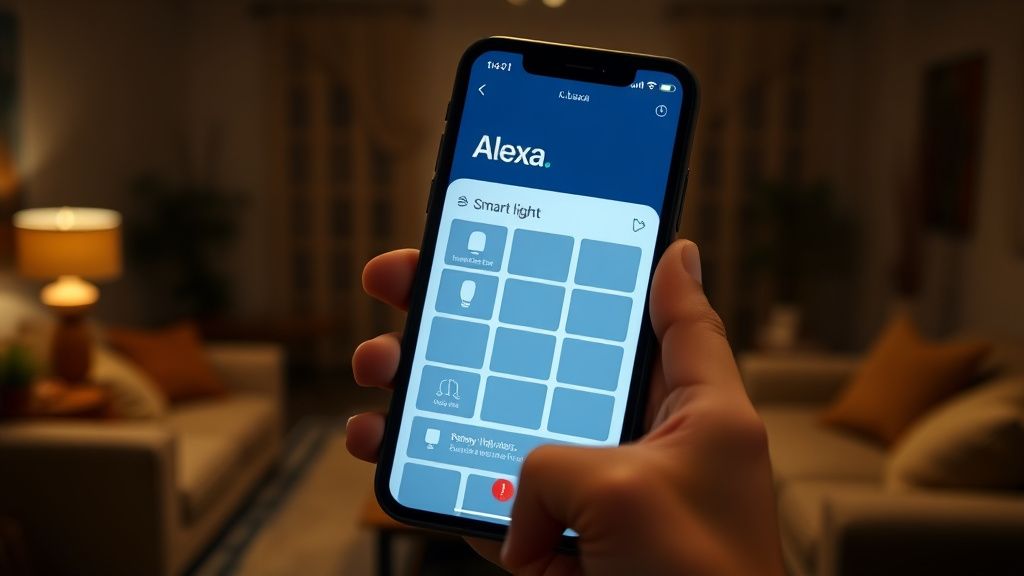
- App UI States: In the Alexa App, the device appears "grayed out" or displays a small exclamation mark icon over the device tile.
- Intermittent Failures: The device works periodically but fails during peak evening hours or high network traffic periods.
- Delayed Execution: Commands take 10+ seconds to execute, eventually resulting in an error despite the device performing the action.
Olası Nedenler (Possible Causes)
The "Unresponsive" error is rarely caused by a single point of failure. It is usually a symptom of a larger architectural issue:
- Wi-Fi Saturation (Channel Congestion): Most smart home devices operate on the 2.4GHz band. In dense urban environments, overlapping channels (1, 6, 11) lead to high packet loss.
- IP Address Exhaustion/Conflicts: DHCP leases expiring and not renewing correctly, or two devices vying for the same static IP.
- Cloud Latency (Skill Timeout): Third-party manufacturer servers (e.g., Tuya, Smart Life, Hue) undergoing maintenance or experiencing server load spikes.
- Firmware Desynchronization: An OTA (Over-the-Air) update installed on the device but not registered in the Alexa Cloud, causing a version mismatch.
- DNS Failures: The device cannot resolve the manufacturer’s API endpoint, leading to an offline status.
- Protocol Gateways (Zigbee/Matter/Z-Wave): If using a bridge/hub, the gateway itself may have lost its local connection, severing the link to its child devices.
Quick Fixes (Hızlı Çözümler)
For the immediate gratification of the client or the home user, follow these steps to clear the majority of simple connectivity loops:
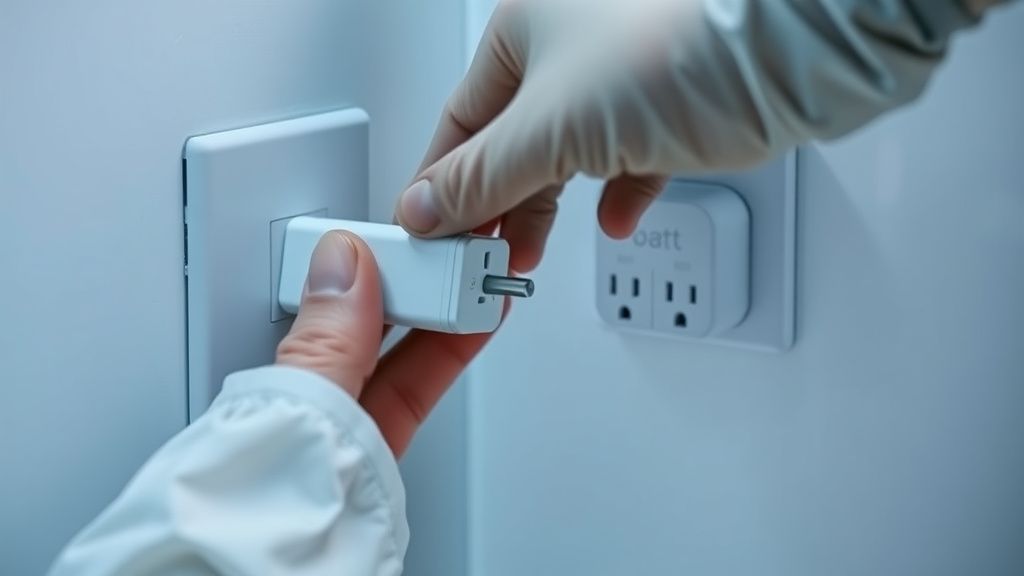
- The Power Cycle: Unplug the unresponsive device, wait 30 seconds, and plug it back in. This forces the device to re-negotiate a DHCP lease and re-authenticate with the cloud API.
- Force Sync: Say, "Alexa, discover my devices." This triggers a refresh of the Alexa Cloud device graph and can bridge the gap if the device token was expired.
- Toggle the Skill: Disable the manufacturer’s skill in the Alexa App and immediately re-enable it. This refreshes the OAuth2 token link between your Amazon account and the device manufacturer.
- Router Refresh: Rebooting the primary Wi-Fi router often clears stale ARP tables that may be trapping the device in an "offline" state.
Advanced Fixes (İleri Düzey Çözümler)
When quick fixes fail, you must perform deep-tissue diagnostics on the network and device hierarchy.
1. Static IP Assignment and Reserved Leases: Do not rely on dynamic IP assignments for smart home bridges. Access your router's administrative dashboard and assign a DHCP Reservation for every smart hub (Hue Bridge, SmartThings, etc.). This ensures that even after a power surge or router reboot, the device is always at the expected network location.
2. Wi-Fi Channel Analysis: Use a tool like WiFi Analyzer on Android or AirPort Utility on iOS to scan the RF spectrum. If your smart devices are on Channel 6 but your neighbor’s router is flooding that same channel, the packet interference will cause "Unresponsive" errors. Shift your IoT-specific Wi-Fi network to a cleaner channel.
3. The NAT Loopback Issue: Some cheap ISP routers do not handle NAT (Network Address Translation) loopback well. If your device needs to reach a cloud server and then come back to your network, the router may drop the connection. If you identify this, you may need to upgrade to a robust mesh Wi-Fi system that supports hairpinning.
4. Firewall/Port Filtering: Check if your router's firewall is blocking outbound traffic on ports commonly used by IoT devices (often ports 8883 for MQTT or 443 for HTTPS). Creating a specific "IoT VLAN" (Virtual Local Area Network) is a best practice for advanced consultants to isolate smart devices from general traffic, reducing "noise" and potential security bottlenecks.
Factory Reset (Fabrika Ayarlarına Döndürme)
If hardware logic is corrupted, a full factory reset is required. Warning: This will remove the device from all scenes and routines.
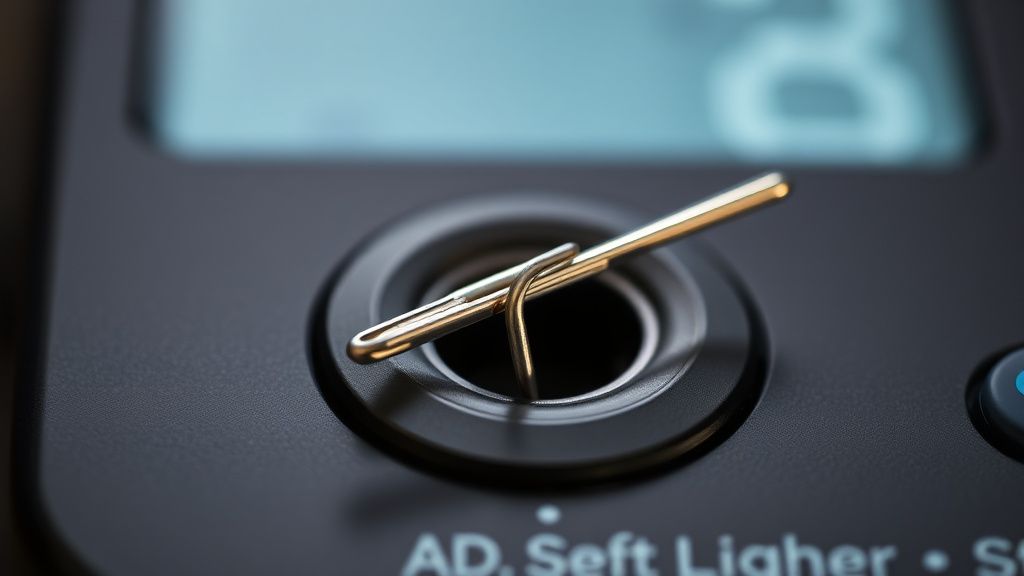
- Hardware Reset: Locate the physical reset button on the device (often recessed in a pinhole). Hold for 10–15 seconds until the status LED flashes rapidly or changes color.
- Cloud Wipe: Delete the device from the Alexa App.
- Cleanup: Go to the manufacturer’s original app (e.g., Google Home, Smart Life) and delete the device there as well to ensure the cloud account has no residual data.
- Re-provisioning: Place the device back into pairing mode and add it as a "New Device" from scratch.
When to Replace (Ne Zaman Yenisiyle Değiştirilmeli?)
As a consultant, you must recognize the point of diminishing returns. Replace the hardware if:
- The Radio Failure: If the device consistently fails to enter pairing mode despite a successful factory reset, the internal Wi-Fi/Zigbee antenna has likely suffered a hardware failure (solder joint fracture or capacitor failure).
- Flash Memory Degradation: If the device loses its settings every time it loses power, the internal non-volatile memory (EEPROM) is failing.
- Security Vulnerability: If the manufacturer has ended "End-of-Life" (EOL) support for the firmware, the device is a security liability. It will never connect reliably again.
- The "Repair Cost Paradox": If the diagnostic time exceeds the cost of a new unit ($20-$50), advise the client to replace it. A professional consultant’s time is worth more than the $15 cost of a budget smart plug.
Real Field Reports (Gerçek Saha Raporları)
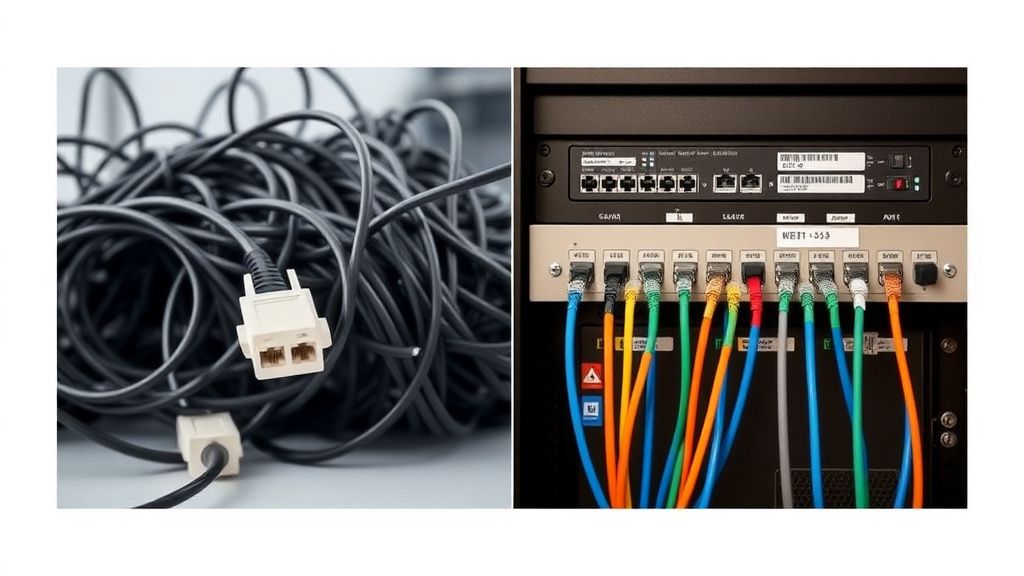
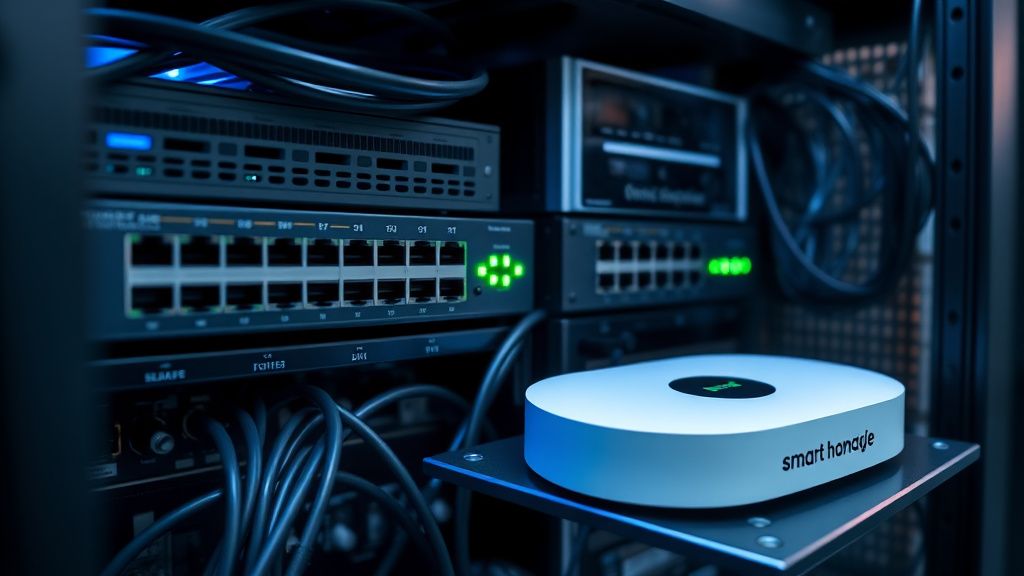
Case Study A: A high-end home in a dense apartment complex. The user had 40 smart bulbs all "unresponsive." Diagnostics revealed the router was trying to manage too many devices on a single radio. The fix: installing a dedicated IoT bridge (Matter-compatible) and offloading the devices from the Wi-Fi spectrum to the Thread/Zigbee mesh network. Case Study B: A client complained of daily "unresponsive" errors at 6:00 PM. We discovered that a neighbor’s smart irrigation controller was firing at that time, causing massive RF interference. We hard-wired the client's main hub to the router via Ethernet, bypassing the Wi-Fi congestion entirely.
Counter-Criticism/Debate (Karşılıklı Eleştiri)
Some industry experts argue that the "unresponsive" issue is purely a failure of Amazon’s cloud-heavy architecture and that moving to purely local control systems like Home Assistant is the only viable future. However, critics of the "Local-First" approach point out that this creates a "support trap." If a consultant builds a custom local server, the client is dependent on that consultant for every minor update. The debate remains: Is it better to have a slightly unstable cloud-based system that any user can reset, or a highly stable local system that is opaque and difficult for the average consumer to maintain?
FAQ (Sıkça Sorulan Sorular)
Why does my Alexa device work fine for hours then suddenly go unresponsive?
This is usually caused by a "lease expiry." Your router assigns an IP address to the device for a set time. If the device fails to renew the lease or the router experiences a memory leak in its DHCP table, the device gets kicked off the network. This is why static IP reservations are the first step in professional consultancy.
Does upgrading my internet speed fix "unresponsive" errors?
Almost never. Smart devices send tiny packets of data—speed is irrelevant. They require latency and stability. Upgrading from 100Mbps to 1Gbps will not solve a packet-loss issue caused by interference or a dying Wi-Fi chip. Focus on signal strength and spectrum clarity instead.
Is it safe to put all my smart devices on a separate Wi-Fi network?
It is more than safe; it is recommended. Creating a dedicated 2.4GHz SSID for IoT devices prevents "Airtime Fairness" issues, where faster devices (like laptops) dominate the bandwidth and force slower IoT devices to time out, leading to the dreaded "unresponsive" status.
Can a firmware update fix a hardware-level "unresponsive" issue?
Very rarely. If the error is caused by a corrupted bootloader, a firmware update can fix it. However, if the error is caused by physical degradation, no amount of software patching will resurrect the component. Trust the diagnostics: if it fails the handshake repeatedly, the silicon is likely failing.