
The Ecovacs Deebot T8 "Error 9" is the bane of the smart home enthusiast’s existence. It is not merely a software glitch or a momentary lapse in Wi-Fi connectivity; it is a mechanical distress signal indicating that the internal water pump—the heart of the OZMO mopping system—has ceased to function correctly. This guide will dissect the anatomy of this failure, provide surgical-grade repair steps, and offer an industry-level perspective on whether to save your unit—much like how you might troubleshoot when your smart home devices are always offline—or salvage its parts.
Problem Nedir (What is the Problem?)
Error 9 on the Ecovacs Deebot T8 signifies a communication or mechanical failure within the OZMO Pro mopping module or the internal water distribution pump. When the robot enters mopping mode, it expects to register a specific current draw from the pump motor. If that current is absent (open circuit), too high (stalled motor), or inconsistent, the logic board triggers Error 9 to protect the system from potential water damage or electrical shorts. Essentially, your robot can no longer push water through the micro-nozzles, rendering the mopping functionality completely useless.
Belirtileri (Symptoms)
Users typically encounter this error in a very specific sequence. You will likely be woken up or interrupted by a loud, repeating voice notification: "Error 9, please check the mopping module."
- Auditory Alert: The robot will audibly announce the error immediately upon starting a mopping cycle or midway through.
- App Notification: Your Ecovacs Home App will display a pop-up window: "Error 9: Water pump failure."
- Mechanical Silence: In a healthy unit, you would hear a faint, high-pitched hum of the micro-pump. With Error 9, there is absolute silence from the mopping reservoir area.
- LED Status: The power button indicator may blink red or pulse in a pattern specific to internal hardware faults.
- Dry Mopping: The cloth pad remains bone-dry despite the robot actively moving across the floor.
Olası Nedenler (Possible Causes)
This is where the debate in the repair community often shifts from software updates to hardware degradation.
- Mineral Buildup (Hard Water): This is the leading cause. If you use tap water instead of distilled water, calcium and magnesium deposits crust over the internal pump mechanism and the fine mesh filters.
- Pump Motor Seizure: The internal pump is a miniature diaphragm pump. Over time, the internal seals can harden, or the motor commutator can develop "dead spots" due to wear, causing the motor to fail to spin on startup.
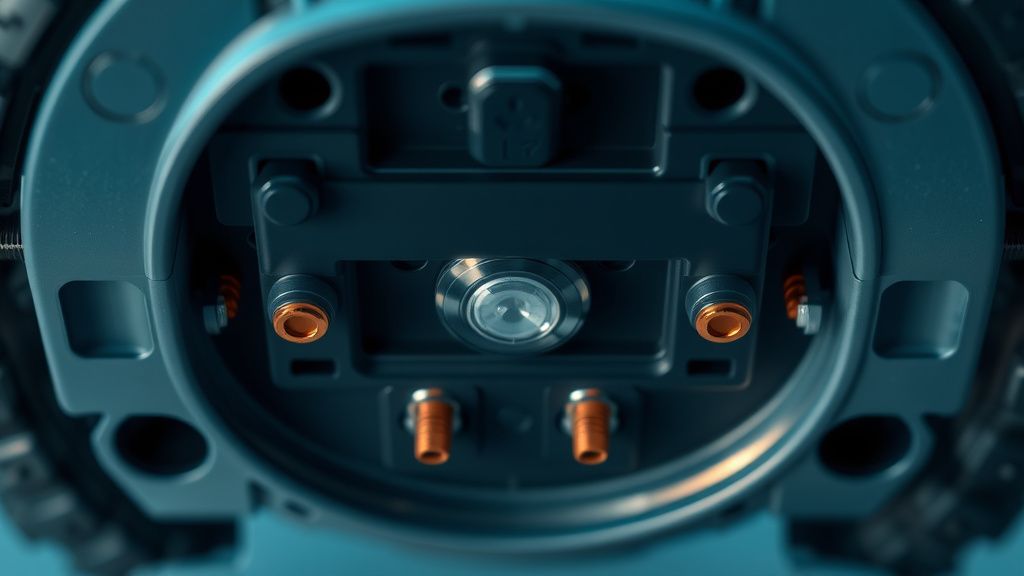
- Oxidation of Electrical Contacts: The connection between the main unit and the mop reservoir relies on spring-loaded pins. If these pins suffer from water ingress or corrosion, the signal/power path is broken.
- Firmware Misinterpretation: In rare cases, a botched OTA (Over-the-Air) update can lead to the robot’s controller board misreading the voltage requirements of the pump, causing a false positive Error 9.
- Clogged Nozzles: If the outlet path is completely blocked, the pump may build up back-pressure so high that the internal pressure sensor shuts down the circuit.
Quick Fixes (Hızlı Çözümler)
Before you reach for the screwdriver, execute these diagnostic steps, keeping in mind that just as you might encounter a Roborock S7 charging error 13, mechanical failures are common across all premium robotics. These represent the "Low-Hanging Fruit" in the repair process, similar to the quick fixes needed when dealing with an iRobot Roomba error 16.
- The Hard Reset: Perform a power cycle. Shut down the robot completely (hold the power button), flip it over, and remove the mopping plate. Turn it back on without the mop attached. Sometimes the internal logic needs to clear the "mopping" state flag.
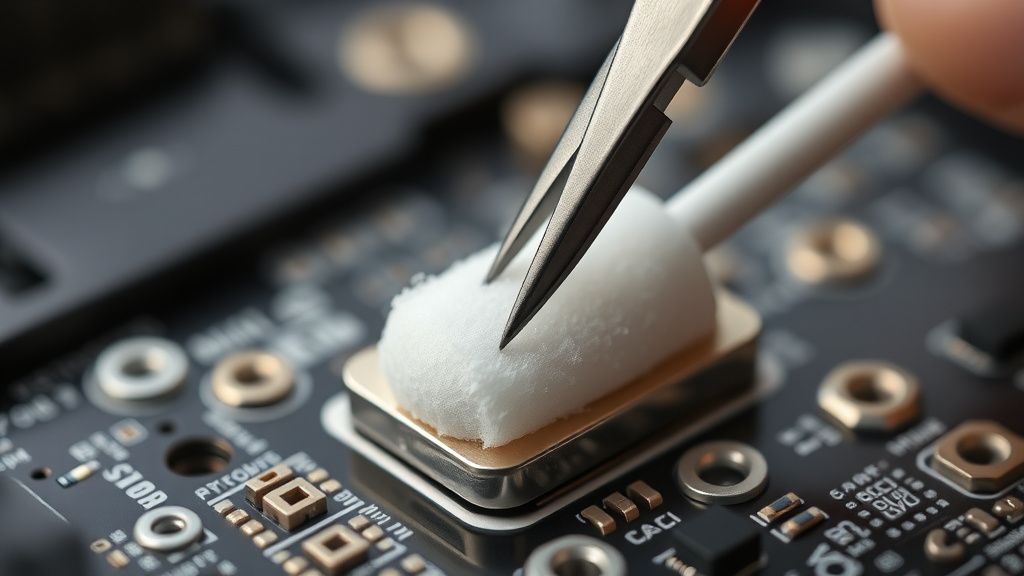
- Contact Cleaning: Use Isopropyl Alcohol (90%+) and a cotton swab to clean the three metal contact pins on the robot and the corresponding contact plates on the mopping reservoir. Oxidation here is the most common culprit for intermittent Error 9s.
- Reservoir Flush: Remove the reservoir. Fill it with a mixture of 50% distilled water and 50% white vinegar. Let it sit for 30 minutes to dissolve mineral deposits. Shake gently and ensure the tiny check valves are not stuck.
- Pin Spring Check: Ensure the spring-loaded pins on the robot base move freely. If one is stuck in the retracted position, it won't make contact with the tank. Press them repeatedly with a non-conductive tool to loosen them.
Advanced Fixes (İleri Düzey Çözümler)
If the Quick Fixes fail, you are looking at a hardware replacement or an internal component bypass.
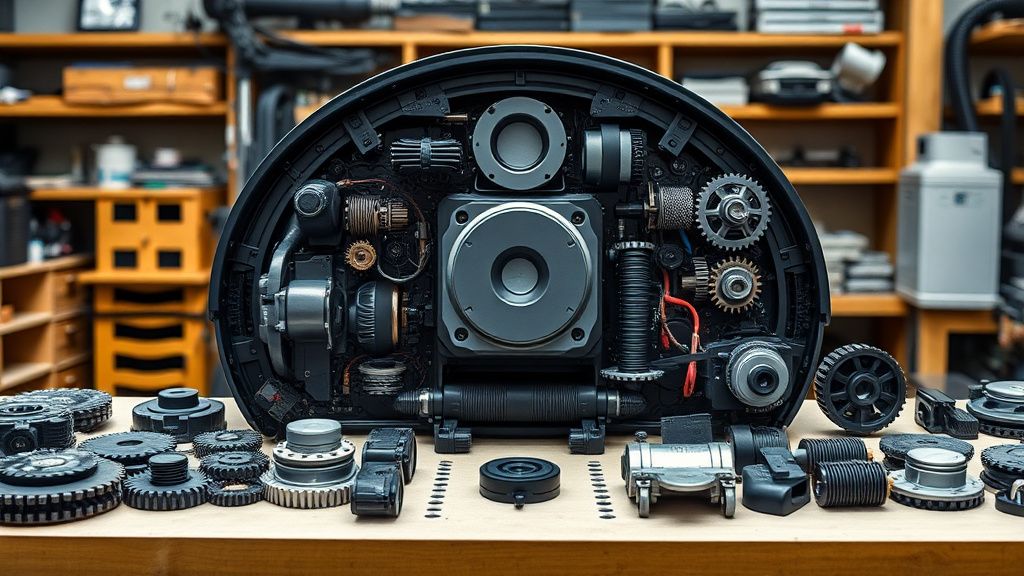
Step 1: The Teardown. You will need a Torx T8 and a Phillips #0 screwdriver. Remove the main bumper and the top shell casing to expose the motherboard. WARNING: This voids any remaining warranty.
Step 2: Checking the Pump Leads. Inspect the two-pin connector leading to the internal pump. Use a multimeter set to DC voltage. Initiate a mopping cycle and check if the board is outputting ~12V to the pump. If you get 0V, the problem is on the motherboard (blown transistor). If you get 12V but the pump stays silent, the pump motor is dead.
Step 3: Pump Replacement. You can source replacement pumps on major marketplaces. This is a "plug and play" replacement once the housing is opened. Use care not to tear the internal ribbon cables during assembly.
Step 4: Real Field Report (The "Clog" Controversy). In the field, technicians often see users drilling out the spray nozzles to increase flow. While this solves the "clogged nozzle" error, it ruins the surface tension required for the OZMO mopping system to function, resulting in streaks. Never enlarge the nozzle openings; replace them or use ultrasonic cleaning.
Factory Reset (Fabrika Ayarlarına Döndürülebilir mi?)
Yes, a full factory reset can be performed to rule out software conflicts. Locate the small reset button near the Wi-Fi indicator LED. Use a paperclip to press and hold this button for 10 seconds while the robot is powered on. You will hear a voice confirmation that the robot is resetting to factory settings. Note: This will delete your map history and custom settings.
When to Replace (Ne Zaman Yenisiyle Değiştirilmeli?)
The threshold for replacement is defined by the Economic Repair Ratio. If the cost of the replacement pump, combined with the risk of damaging the shell during the teardown, exceeds 40% of the price of a current-gen model, it is time to upgrade.
- The Motherboard Verdict: If your multimeter confirms that the motherboard is failing to supply voltage to the pump, stop. Replacing a main logic board on a T8 is rarely worth the investment due to the high cost of the board and the complexity of the calibration required afterward.
- Chassis Fatigue: If you notice stress cracks around the wheel housing or the lidar turret during your teardown for the Error 9, the structural integrity of the unit is compromised. Retire the unit.
Karşılıklı Eleştiri (Counter-Criticism & Debate)
Within the repair community, there is a fierce debate regarding "Original vs. Aftermarket" parts. Many third-party sellers on sites like AliExpress offer cheap replacement pumps for the Deebot series. Critics argue these pumps lack the specific pressure calibration of the OEM (Original Equipment Manufacturer) parts, leading to either leaking or premature failure within 3-6 months. The opposing side, however, argues that the OEM price-gouging is the real issue, and these clones are "good enough" for an aging device. My professional stance: Use an OEM pump if you plan to keep the robot for another 2 years; use an aftermarket clone only if you are looking to flip the unit for a quick sale.
FAQ
Is it safe to use vinegar in my Deebot reservoir?
Why does Error 9 happen only on specific carpets?
Can I bypass the pump and use a gravity-fed system?
How do I monetize these repairs?